Accessibility (a11y) — Building Inclusive Web Interfaces¶
TCSS 460 — Client/Server Programming
This guide is the canonical front-end-side reference for accessibility in TCSS 460. The companion Week 9 concept reading covers the what and why — POUR principles, WCAG levels, the legal landscape. This guide covers the how — the specific patterns, code, and testing workflow you will apply across every front-end you build for the rest of the course and your career.
By Week 9 you have shipped React or Next.js apps that almost certainly contain accessibility bugs. That is normal — most CS programs skip this layer entirely. The good news: you are closer to industry-ready than you think, and the highest-value fixes are smaller than you expect.
1 Why Accessibility Matters¶
Accessibility is the discipline of making your interface usable by people who interact with computers differently from the median developer — people who use a screen reader, navigate with the keyboard only, run high-contrast mode, zoom to 400%, dictate input by voice, or any combination of those. About 16% of the global population lives with some form of disability according to the World Health Organization, and that fraction grows as populations age.
There are four reasons you should care, in increasing order of how often they get cited and decreasing order of how persuasive they actually are:
1.1 The Legal Layer¶
Accessibility lawsuits are routine and expensive in the United States, and increasingly so in the EU.
- Robles v. Domino's Pizza, 913 F.3d 898 (9th Cir. 2019) — the Ninth Circuit ruled that the Americans with Disabilities Act applies to commercial websites and mobile apps that connect to physical places of business. The U.S. Supreme Court declined to hear Domino's appeal in October 2019, leaving that ruling intact. The case is the most cited modern precedent for "yes, your website has to be accessible, and yes, you can be sued if it is not."
- National Federation of the Blind v. Target Corp. (settled 2008) — the first major e-commerce accessibility class action. Target paid roughly $6 million plus attorneys' fees and agreed to NFB-certified remediation of
target.com. This case established that commercial websites are subject to ADA accessibility requirements. - Section 508 of the Rehabilitation Act — applies to federal agencies and any vendor selling information and communication technology (ICT) to them. The 2018 refresh adopted WCAG as the technical standard. If you ever build for a federal contract, an educational institution that takes federal money, or many state governments that mirror Section 508, you are bound by WCAG.
- European Accessibility Act (EAA) — took effect June 28, 2025. It applies to a wide swath of products and services sold into the EU: e-commerce, banking, telecoms, e-readers, transport ticketing. The technical conformance standard is EN 301 549, which currently incorporates WCAG 2.1. Penalties are set by member states; non-compliant products can be removed from the EU market.
The companion concept reading goes deeper on the legal landscape. The takeaway here: accessibility is a legal requirement, not a feature request, in any market your employer is likely to operate in.
1.2 The Ethical Layer¶
Building software that excludes people you have never met from using it — when the cost of inclusion is small and the cost of exclusion to them is large — is a moral failure. You will not always be motivated by this, and that is fine; the legal layer above and the practical layer below will pull you the rest of the way. But it is the layer that most accessibility practitioners care about, and it is worth being honest about.
1.3 The Practical Layer¶
Most accessibility improvements are also usability improvements:
- Keyboard navigation is what power users on every platform use. The shortcuts that let a screen-reader user jump heading-to-heading are the same shortcuts a developer uses to navigate documentation in Vim or VS Code.
- Semantic HTML is what search engines index. Google's crawler walks the DOM the same way a screen reader does. SEO and a11y are largely the same discipline at the markup layer.
- Captions and transcripts are how anyone watches video on a noisy bus, in a quiet office, or in a second language.
- High contrast is what every developer needs at 2 PM in a south-facing window with the sun in their face.
1.4 The Cost Curve¶
Retrofitting accessibility into a finished application is a rewrite. Building it in from the start costs a small amount per component. The industry consensus is roughly an order of magnitude difference. The WebAIM Million Report, the most-cited annual accessibility audit of the top one million home pages, found in its 2025 edition that 94.8% of home pages had detectable WCAG errors — an average of 51 errors per page. The fix-it-later strategy is the strategy that keeps producing those numbers year after year.
Companion reading
For the broader treatment of POUR principles, WCAG conformance levels, and the assistive-technology landscape, read Accessibility on the Web (Week 9). This guide assumes you have skimmed it.
2 Semantic HTML — The Foundation¶
Most of accessibility is solved by writing HTML that says what it means. The browser already knows how a button should behave with a keyboard, how a heading should announce itself to a screen reader, how a list should be navigable. Use the right element and you inherit all of that for free.
The mental model is a hierarchy of compromises:
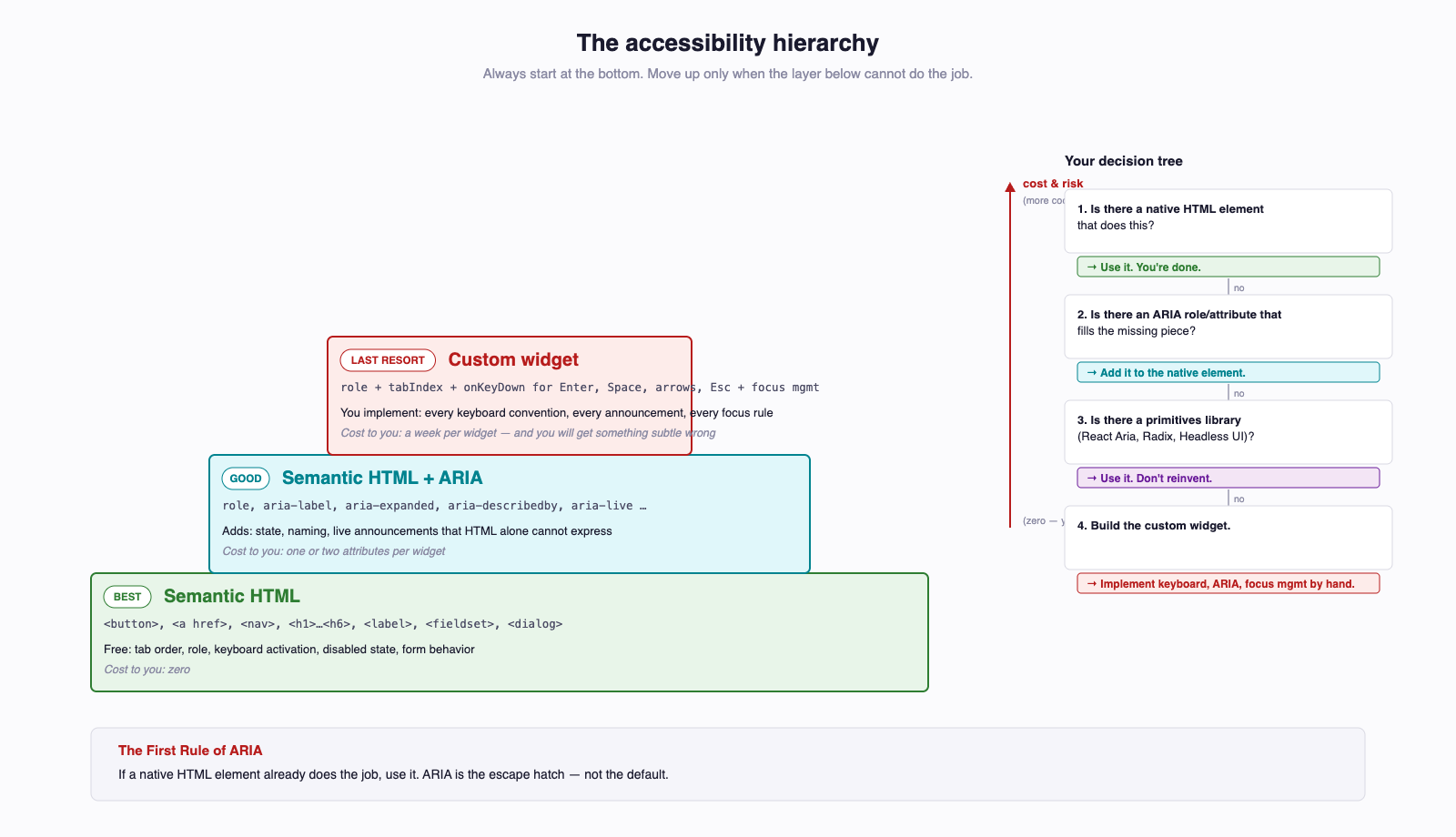
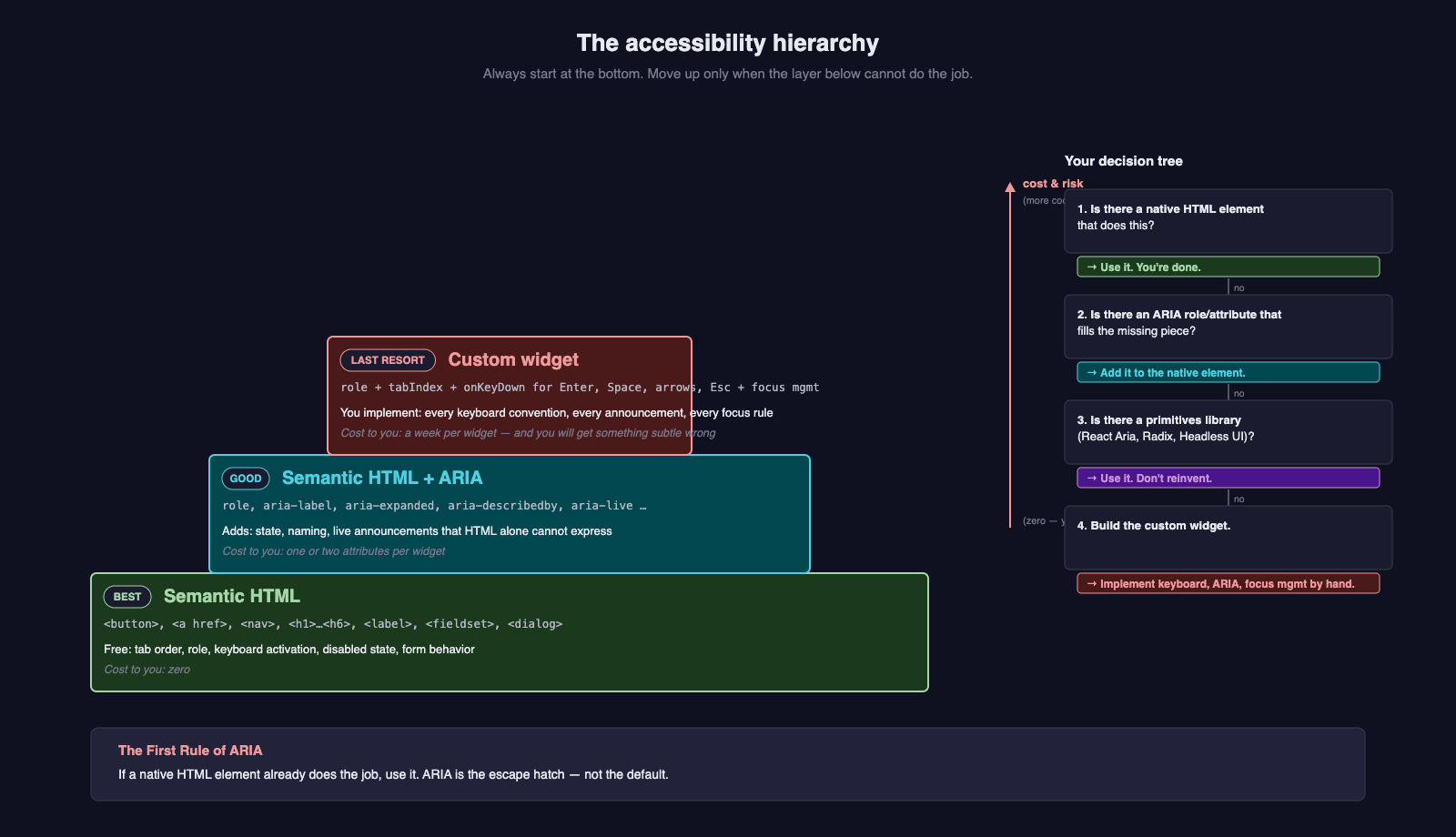
Native elements first. ARIA only when no native element fits. Custom widgets only when a library has not already solved the problem.
2.1 <button> vs <div onClick> — The Canonical Example¶
This is the single most-violated rule on the web, and the WebAIM Million Report calls it out every year.
Wrong:
// Looks identical to a button. Behaves nothing like one.
<div className="btn" onClick={handleSave}>
  Save
</div>
What this version does to people who do not use a mouse:
| User | Experience |
|---|---|
| Keyboard-only user | Cannot Tab to it. Cannot reach it at all. |
| Screen-reader user | Hears "Save" as a static text node. No "button" role announced. |
| Voice-control user | "Click Save" does nothing — there is no button for the OS to find. |
| Switch / AT user | Not in the list of interactive elements; the switch skips over it. |
Right:
What you get for free with <button>:
- Tab focus
- Enter and Space activation
- The "button" role announced to screen readers ("Save, button")
- Disabled state via the
disabledattribute - Form-submission behavior when inside a
<form>(usetype="button"to opt out)
The First Rule of ARIA: Don't use ARIA
The WAI-ARIA Authoring Practices begin with this rule, and it is the single most important sentence in this guide. If a native HTML element already does the job, use it. Reaching for <div role="button" tabIndex={0} onKeyDown={...}> when <button> exists is the ARIA equivalent of writing Object[] everywhere instead of using TypeScript's type system. ARIA is the escape hatch, not the default.
2.2 Landmark Elements¶
Screen readers let users jump directly between landmarks the way you jump between headings in a long document. A page with proper landmarks is navigable in seconds; a <div>-soup page is navigable line by line.
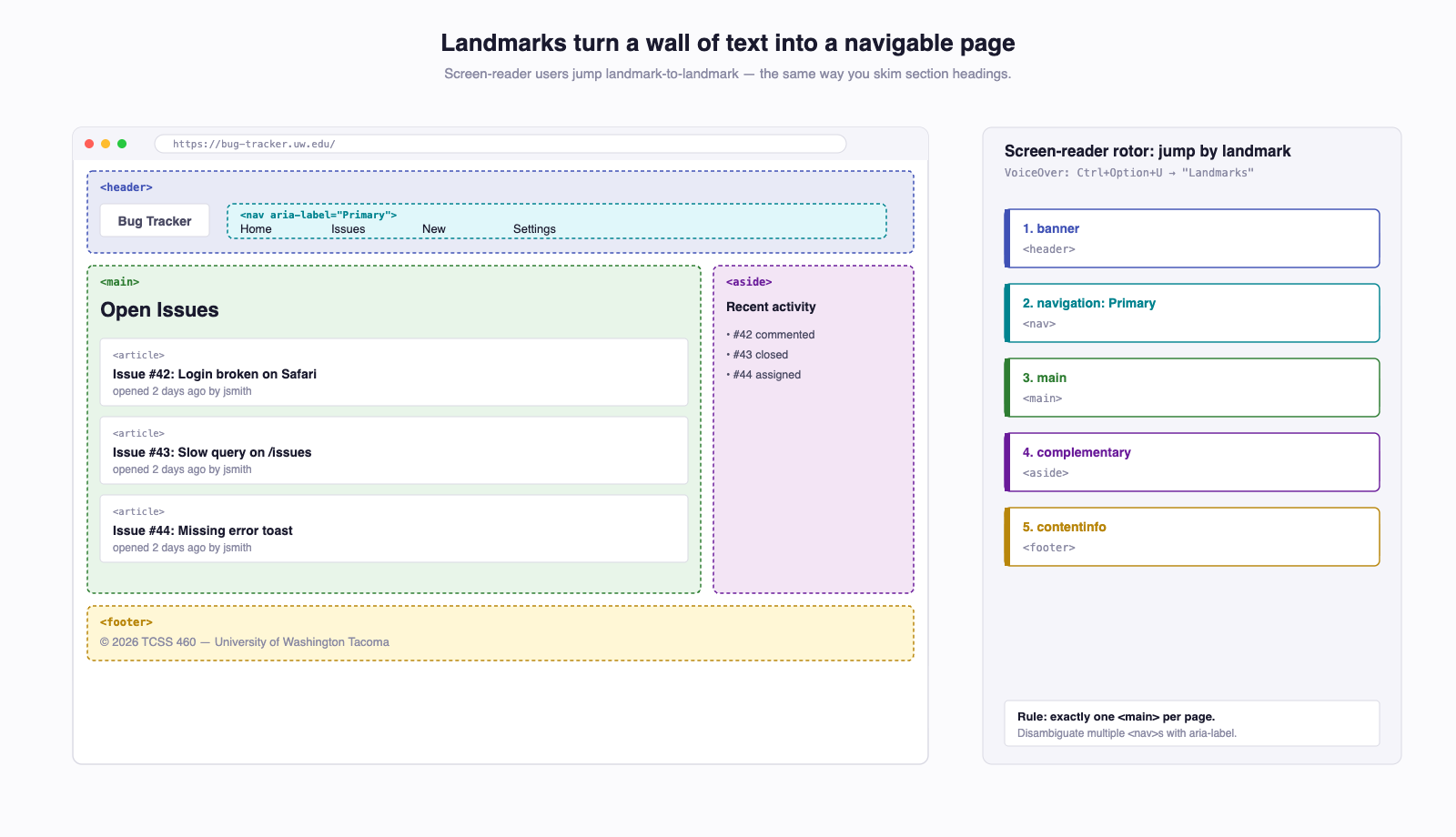
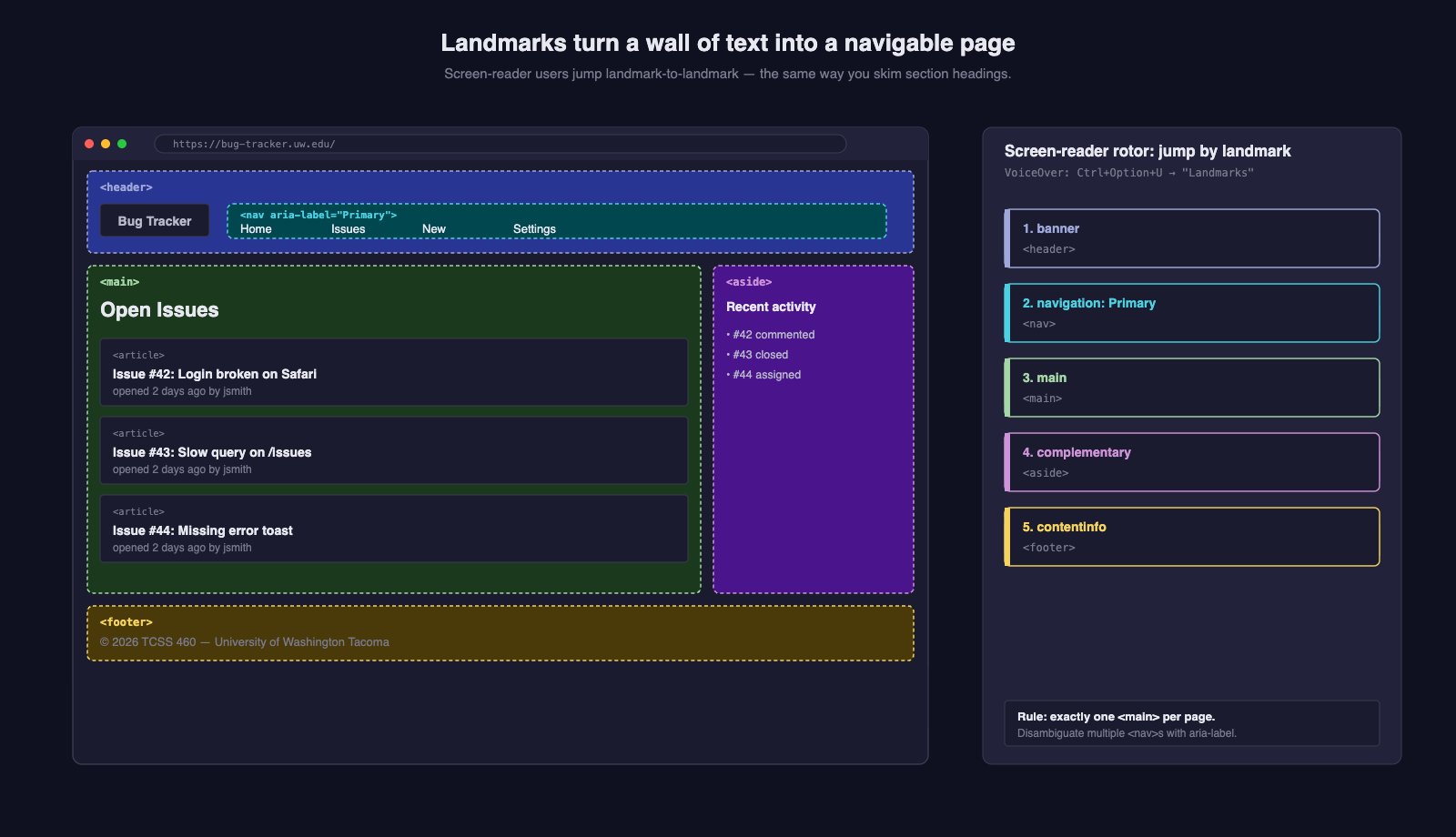
<body>
<header>
<nav aria-label="Primary">
<a href="/">Home</a>
<a href="/issues">Issues</a>
</nav>
</header>
<main>
<h1>Bug Tracker</h1>
<article>
<h2>Issue #42</h2>
...
</article>
</main>
<aside aria-label="Recent activity">
...
</aside>
<footer>
<p>© 2026 TCSS 460</p>
</footer>
</body>
Rules:
- Exactly one
<main>per page. - Multiple
<nav>s are fine — distinguish them witharia-label(e.g.,aria-label="Primary"andaria-label="Footer"). <header>and<footer>at the top level are landmarks; nested inside an<article>they are not.
2.3 Heading Hierarchy¶
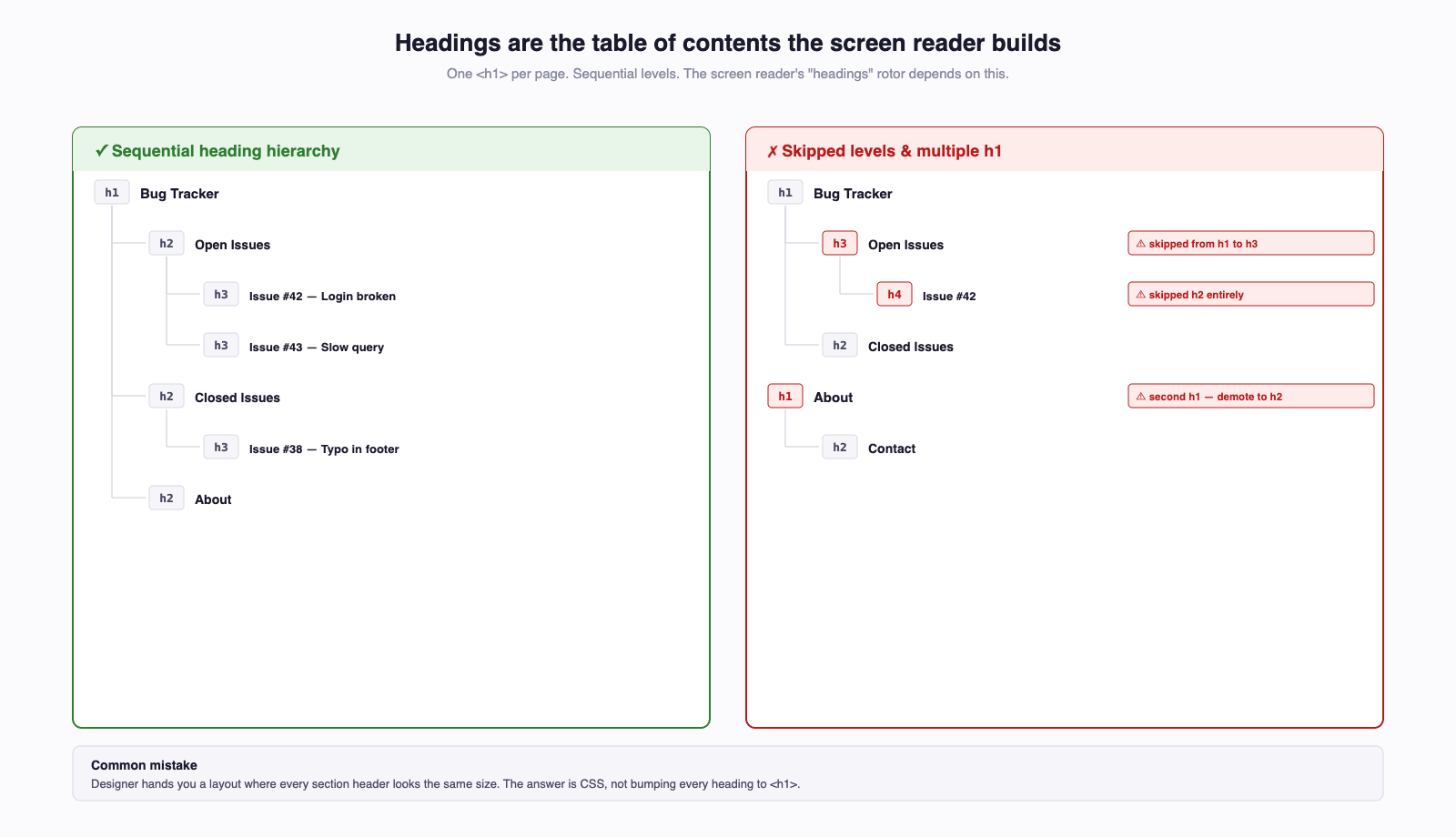
Headings are not visual styling. They are the table of contents the screen reader builds for the page.
<!-- GOOD -->
<h1>Bug Tracker</h1>
  <h2>Open Issues</h2>
    <h3>Issue #42</h3>
    <h3>Issue #43</h3>
  <h2>Closed Issues</h2>

<!-- BAD: skipping levels -->
<h1>Bug Tracker</h1>
  <h3>Open Issues</h3>   <!-- where did h2 go? -->

<!-- BAD: multiple h1 (in most cases) -->
<h1>Bug Tracker</h1>
<h1>Open Issues</h1>     <!-- demote to h2 -->
The rule: one <h1> per page, and never skip levels. If a designer hands you a layout where every section header looks the same size, the answer is CSS, not bumping every heading to <h1>.
2.4 <a> vs <button>¶
The deciding question: does this change the URL?
<a href="/issues/42">View issue</a>— navigation. Browser handles back/forward, middle-click-to-open-in-tab, right-click-copy-link, etc.<button onClick={openModal}>View issue</button>— action. Triggers behavior but does not change the URL.
A link styled to look like a button is fine; a button styled to look like a link is fine. A link with href="#" and a click handler is not fine — it breaks every browser convention link users rely on.
2.5 Use Lists When You Have a List¶
<!-- GOOD: screen reader announces "list of 3 items" -->
<ul>
  <li>Issue #42</li>
  <li>Issue #43</li>
  <li>Issue #44</li>
</ul>

<!-- BAD: announces nothing structural -->
<div class="list">
  <div>Issue #42</div>
  <div>Issue #43</div>
  <div>Issue #44</div>
</div>
The same applies to <table> for tabular data, <dl> for definition lists, and <details>/<summary> for native disclosure widgets.
3 Keyboard Navigation¶
Plenty of people never touch a mouse: motor-impaired users, screen-reader users, power users on every platform, anyone working from a laptop on a bumpy bus. Your app must be fully usable from the keyboard alone.
3.1 The Tab Order¶
By default, the browser walks interactive elements (<a href>, <button>, <input>, <select>, <textarea>, anything with tabindex="0") in DOM order. That means your DOM order is your keyboard navigation order.
Visualize it as a path through the page:
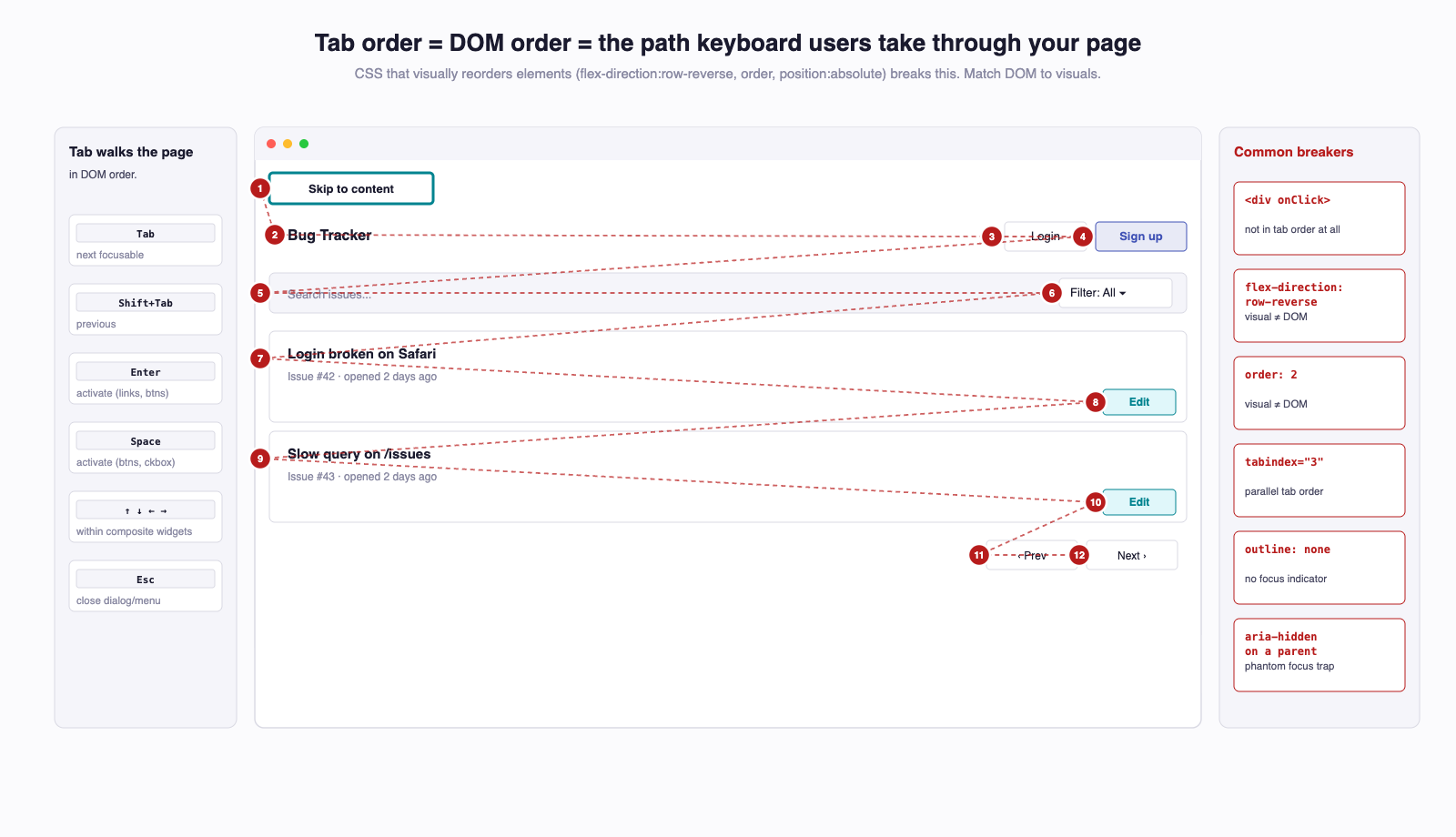
If the visual layout reads left-to-right, top-to-bottom (it usually does), the DOM order should match. CSS order, flex-direction: row-reverse, and position: absolute can break this — visually you see one order, the keyboard walks a different one. Sighted keyboard users get whiplash; screen-reader users get nonsense.
3.2 The Focus Indicator Is Non-Negotiable¶
The browser draws a focus ring on whichever element currently has keyboard focus. That ring is how every keyboard user knows where they are on the page.
Never outline: none without a replacement
The single most damaging line of CSS on the modern web is *:focus { outline: none; } with nothing in its place. It removes the focus ring globally, leaves keyboard users completely blind to where they are, and has been on every accessibility-checklist-of-shame for fifteen years. If you do not like the default browser ring, replace it with something visible — do not delete it.
The modern, ergonomic answer is :focus-visible, which has had universal browser support since late 2021 (Chrome and Firefox in early 2021, Safari in December 2021):
/* Reset the default ring only when we provide our own */
button:focus {
  outline: none;
}

/* Show a clear, course-color ring when the user is keyboarding */
button:focus-visible {
  outline: 3px solid var(--course-primary);
  outline-offset: 2px;
}
The browser only matches :focus-visible when the user reached the element by keyboard — clicks no longer leave a ring on the button after release, but Tab/Enter does. You get the visual cleanliness designers ask for and the focus indicator a11y requires.
3.3 Skip Links¶
Every page should let keyboard users skip past the header/nav block straight to the main content. Without a skip link, every keyboard user Tab-Tab-Tabs through every nav item on every page.
// Place as the very first element in <body>, visually hidden until focused.
<a href="#main" className="skip-link">
  Skip to content
</a>

<main id="main" tabIndex={-1}>
  ...
</main>
.skip-link {
  position: absolute;
  left: -9999px;
}
.skip-link:focus {
  left: 0;
  top: 0;
  background: white;
  padding: 0.5rem 1rem;
  z-index: 9999;
}
The skip link is invisible until a keyboard user Tabs to it (it is the first focusable element on the page, so it is the first stop). Then it appears, the user hits Enter, and focus jumps to <main>.
3.4 The tabindex Attribute¶
Three values, three meanings:
| Value | Meaning |
|---|---|
tabindex="0" |
Make this element focusable, in normal DOM-order tab position. |
tabindex="-1" |
Focusable programmatically (element.focus()), not in tab order. |
tabindex="1"+ |
Almost always wrong — see below. |
tabindex="-1" is what you want on a <main> you intend to focus on route change (so screen readers re-announce the page) but do not want users tabbing to.
Positive tabindex values create a parallel tab order that runs before DOM order: every tabindex="1" first, then every tabindex="2", then DOM order. This is almost always wrong; it confuses everyone, including the developer who wrote it three weeks ago.
3.5 A Custom Dropdown — Wrong vs Right¶
This is the canonical "you reached for <div> when <button> would do" example.
Wrong:
function Dropdown() {
  const [open, setOpen] = useState(false);
  return (
    <div className="dropdown">
      <div onClick={() => setOpen(!open)}>Filter</div>
      {open && (
        <div className="menu">
          <div onClick={() => choose("open")}>Open</div>
          <div onClick={() => choose("closed")}>Closed</div>
        </div>
      )}
    </div>
  );
}
What a screen reader announces: "Filter. Open. Closed." Three text nodes. Nothing about it being a button, nothing about it being a menu, no way to know it is interactive. Keyboard cannot reach it.
Right (semantic baseline):
function Dropdown() {
  const [open, setOpen] = useState(false);
  return (
    <div className="dropdown">
      <button
        type="button"
        aria-expanded={open}
        aria-haspopup="menu"
        onClick={() => setOpen(!open)}
      >
        Filter
      </button>
      {open && (
        <ul role="menu" className="menu">
          <li role="menuitem">
            <button type="button" onClick={() => choose("open")}>
              Open
            </button>
          </li>
          <li role="menuitem">
            <button type="button" onClick={() => choose("closed")}>
              Closed
            </button>
          </li>
        </ul>
      )}
    </div>
  );
}
Now Tab reaches the trigger; Enter or Space toggles it; the screen reader announces "Filter, menu button, collapsed" / "expanded". Each menu item is itself a real button.
A fully WAI-ARIA-compliant menu also implements arrow-key navigation between items, Escape to close, and focus return to the trigger on close. That is doable by hand, and the Authoring Practices Guide spells it out, but it is exactly the case where reaching for an accessible primitives library (React Aria, Headless UI, Radix UI) is the right move — see §10.
The keyboard-only test
Unplug your mouse, or put a sticky note over your trackpad, and use your app for ten minutes. You will find every issue this section is about, and a few it is not, in the first five.
4 Color and Contrast¶
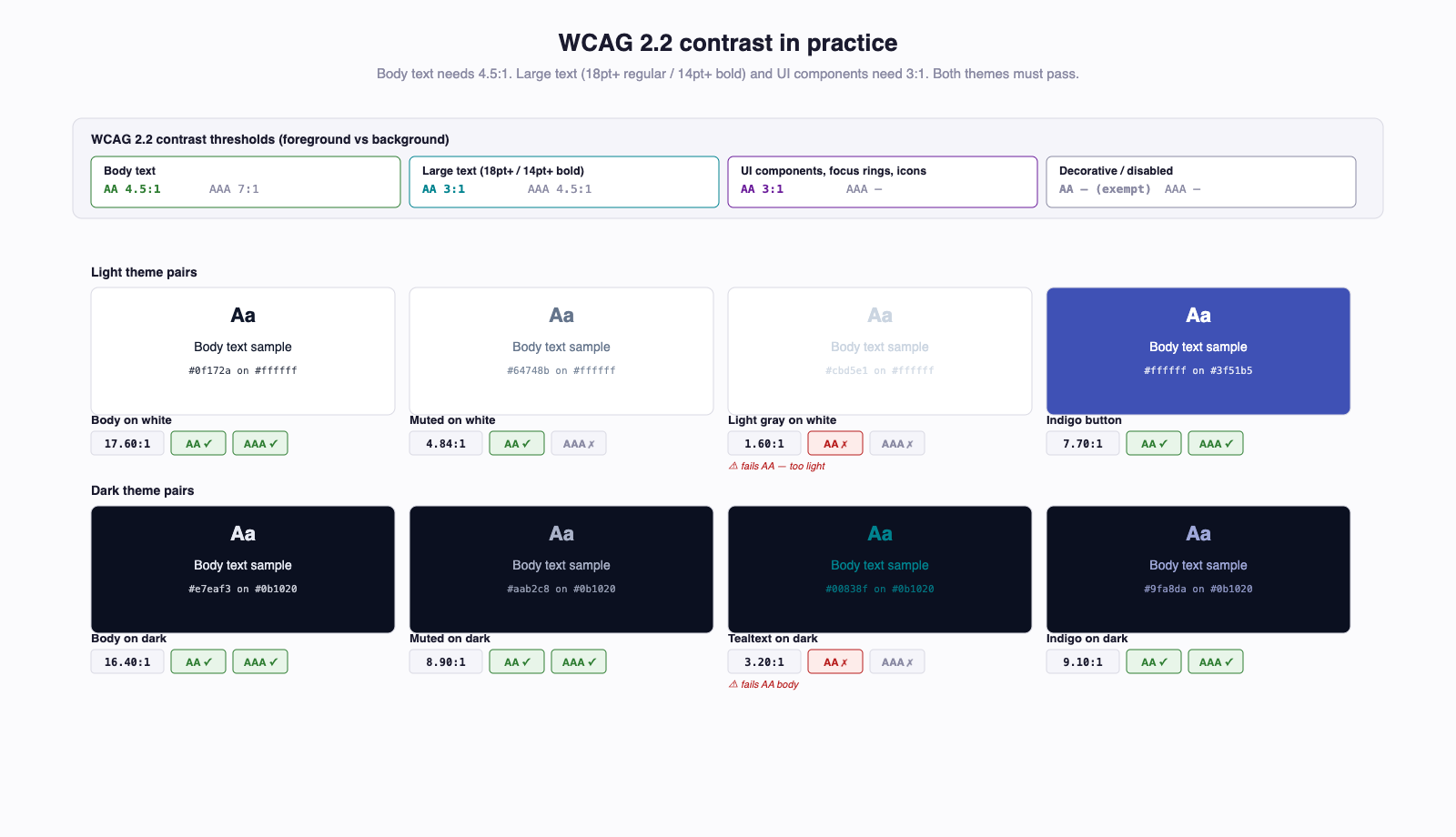
Around 8% of men and 0.5% of women have some form of color vision deficiency. Many more people use the web in suboptimal lighting, with low-quality screens, or with vision changes from age. The fix is two rules.
4.1 Contrast Ratios¶
WCAG 2.2 specifies minimum contrast ratios between foreground and background. These have been stable across WCAG 2.0, 2.1, and 2.2.
| Element | AA (minimum) | AAA (enhanced) |
|---|---|---|
| Body text (under 18pt regular / 14pt bold) | 4.5 : 1 | 7 : 1 |
| Large text (18pt+ regular / 14pt+ bold) | 3 : 1 | 4.5 : 1 |
| UI components and graphical objects (icons, borders, focus rings) | 3 : 1 | — |
For TCSS 460 work, target WCAG 2.2 AA — the same level Section 508 and the EAA effectively require.
Tools that check contrast for you:
- Chrome DevTools color picker — open DevTools → Elements → click any color value in the Styles panel → the picker shows live contrast ratio against the computed background.
- WebAIM Contrast Checker — paste two hex codes, get a verdict.
- axe DevTools — flags every contrast failure on the page in one scan.
4.2 Color Alone Is Not Enough¶
A red border on an invalid input is invisible to a user with red-green color blindness. State must be communicated through at least two channels — color plus icon, color plus text, color plus shape.
Three concrete patterns:
{/* WRONG: only the red border tells the user something is wrong */}
<input className={hasError ? "border-red" : ""} />

{/* RIGHT: red border + icon + error text, all programmatically associated */}
<input
  aria-invalid={hasError}
  aria-describedby={hasError ? "email-error" : undefined}
  className={hasError ? "border-red" : ""}
/>
{hasError && (
  <p id="email-error" className="error">
    <ErrorIcon aria-hidden="true" /> Please enter a valid email address.
  </p>
)}
Other common cases:
- A required-field indicator should not be only red color on the asterisk; the asterisk itself, a text label "(required)", or both, do the work.
- Selected/active states in a menu should not be only "this one is blue" — add a check icon, an underline, or
aria-current. - Links inside a body of text should never rely solely on color; underline them, or add an icon.
4.3 Both Themes, Always¶
Every contrast pair must pass in both light and dark themes. A palette that meets 4.5:1 against #ffffff may fall to 2.8:1 against your dark-mode surface. The audit at the end of this guide explicitly checks both themes — do not ship one and ignore the other.
5 Forms — The Highest-Value Section¶
Every web app has forms. Most of them are inaccessible. The ROI on getting forms right is the highest of any topic in this guide — read this section twice.
5.1 Every Input Needs a Label¶
Two ways to wire a label to an input. Pick one and be consistent.
{/* Pattern A: explicit association via for/id */}
<label htmlFor="email">Email</label>
<input id="email" type="email" name="email" />

{/* Pattern B: wrapping label */}
<label>
  Email
  <input type="email" name="email" />
</label>
Both produce identical screen-reader output: clicking or tapping the label focuses the input, and the screen reader announces "Email, edit text" when the user reaches the input. If you cannot wire either pattern (e.g., a search input with only a magnifying-glass icon button next to it), use aria-label or aria-labelledby — but a real <label> is always preferred.
Placeholder is NOT a label
<input placeholder="Email"> with no <label> is one of the most common a11y bugs on the web. Three reasons it fails:
- The placeholder text disappears the moment the user starts typing. There is no longer any cue what the field is for.
- Most browsers render placeholder text in low-contrast gray that fails WCAG contrast minimums.
- Some screen-reader configurations skip placeholder text entirely or treat it as the input's value.
Use a real <label>. If the design demands a "floating label" or "label inside the field" effect, use CSS to position the real <label> — do not delete it.
5.2 Required Fields and Validation¶
<label htmlFor="email">
  Email <span aria-hidden="true">*</span>
  <span className="visually-hidden"> (required)</span>
</label>
<input
  id="email"
  type="email"
  name="email"
  required
  aria-required="true"
  aria-invalid={!!errors.email}
  aria-describedby={errors.email ? "email-error" : "email-hint"}
/>
<p id="email-hint" className="hint">
  We'll only use this for sign-in.
</p>
{errors.email && (
  <p id="email-error" role="alert" className="error">
    {errors.email}
  </p>
)}
What this does for assistive tech:
- The screen reader announces "Email, required, edit text" on focus (from
required/aria-required). - It then reads the
aria-describedbytarget — the hint, or the error if validation failed. aria-invalid="true"lets the screen-reader user know this field is in an error state.role="alert"on the error message causes most screen readers to announce the error immediately when it appears, without waiting for focus to return to the field.
The visual asterisk is aria-hidden="true" because the screen-reader user already heard "required" — playing them an asterisk on top of that is noise.
5.3 Grouping Related Inputs with <fieldset>¶
Radio groups and checkbox groups are the canonical case. Without <fieldset>, a screen reader announces each radio individually with no group context — the user hears "Open, radio button, 1 of 3" but never learns what the group is for.
<fieldset>
  <legend>Issue status</legend>

  <label>
    <input type="radio" name="status" value="open" /> Open
  </label>
  <label>
    <input type="radio" name="status" value="in-progress" /> In progress
  </label>
  <label>
    <input type="radio" name="status" value="closed" /> Closed
  </label>
</fieldset>
Now the screen reader announces "Issue status, group. Open, radio button, 1 of 3."
5.4 Autocomplete Attributes¶
The autocomplete attribute tells the browser (and password managers, and some assistive technologies) what kind of data goes in a field. The win is concrete: users with motor impairments or cognitive disabilities benefit enormously from filling fields automatically.
<input id="name"     name="name"     type="text"     autocomplete="name" />
<input id="email"    name="email"    type="email"    autocomplete="email" />
<input id="pw"       name="password" type="password" autocomplete="current-password" />
<input id="newpw"    name="password" type="password" autocomplete="new-password" />
<input id="address"  name="address"  type="text"     autocomplete="street-address" />
<input id="otp"      name="otp"      type="text"     autocomplete="one-time-code" />
The MDN reference lists the full vocabulary. As a rule of thumb: every standard field has a corresponding autocomplete value, and using it makes the form measurably easier to fill.
5.5 Submit Buttons¶
{/* WRONG: not actually a submit button; not a button at all */}
<form onSubmit={handleSubmit}>
  ...
  <div className="btn" onClick={handleSubmit}>Submit</div>
</form>

{/* RIGHT */}
<form onSubmit={handleSubmit}>
  ...
  <button type="submit">Create account</button>
</form>
Two notes:
- Use
<button type="submit">(or omittype—submitis the default inside a form). This makes Enter inside any form input submit the form, the way users expect. - "Submit" is a weak label. Say what the action does: "Create account", "Save changes", "Delete issue", "Send invitation". The screen-reader user reading a button list out of context gets nothing from "Submit"; "Create account" tells them everything.
6 Images and Media¶
6.1 Alt Text Rules¶
Every <img> must have an alt attribute. The value depends on what the image is doing:
| Image's role | alt value |
|---|---|
| Conveys information | Concise description of the information. |
| Decorative only | Empty: alt="" — screen readers will skip it. |
| Inside a caption-bearing figure | alt describes the image; <figcaption> adds the caption. |
| Functional (image-only link) | alt describes the destination, not the image. |
Concrete examples:
<!-- Informative -->
<img src="/charts/q3-sales.png"
     alt="Q3 sales by region: West $4.2M, Central $3.1M, East $2.8M">

<!-- Decorative -->
<img src="/decorative-divider.svg" alt="">

<!-- Functional (entire image is a link to the home page) -->
<a href="/">
  <img src="/logo.svg" alt="TCSS 460 home">
</a>
Don't write 'image of...' or 'picture of...'
Screen readers already announce "image" before reading the alt text. Writing alt="image of a grey tabby cat" produces "image, image of a grey tabby cat." Just write alt="A grey tabby cat".
6.2 Missing Alt — The Most Common Failure¶
The 2025 WebAIM Million found 18.5% of all home page images had missing alt text — about 11 missing-alt images per home page on average. This is the easiest accessibility bug to fix and the most common one to ship.
JSX does not enforce alt
TypeScript's JSX types accept <img src="..." /> with no alt and produce no error. Install eslint-plugin-jsx-a11y (see §10) — it catches missing-alt on every PR. Without the linter, missing alt is the bug that ships first and most often.
6.3 Light + Dark Image Pairs¶
This course uses MkDocs Material's #only-light / #only-dark URL-fragment trick to swap diagrams between themes:


Both lines must carry identical alt text. The screen reader announces the image once regardless of theme; if one variant is missing alt or has a different description, you have created a theme-dependent accessibility bug.
6.4 Decorative vs Informative SVG¶
<!-- Decorative SVG: hide from AT entirely -->
<svg aria-hidden="true" focusable="false">
  <path d="..."/>
</svg>

<!-- Informative SVG: give it a role and a label -->
<svg role="img" aria-label="Loading">
  <path d="..."/>
</svg>
A common case: an icon next to a text label. The text already says what the action is, so the icon is decorative — aria-hidden="true". An icon-only button is informative — aria-label="Close".
6.5 Video and Audio¶
- Captions for video are a legal requirement in most contexts (federal under Section 508; EU under EAA for many services). They benefit far more than the deaf and hard of hearing — anyone in a quiet office, a noisy commute, or watching in a second language.
- Transcripts below the player help everyone — including search engines and the time-constrained user who would rather skim than watch.
- Auto-play is a usability and accessibility disaster. Surprise audio breaks every screen-reader user's flow; surprise motion is a known migraine and seizure trigger. Always require explicit user action to start media.
7 ARIA — When and How¶
ARIA — Accessible Rich Internet Applications — is a set of attributes that tell assistive technology things HTML alone cannot. It is the layer below "use semantic HTML" and above "build a custom widget from scratch."
The First Rule of ARIA, restated
No ARIA is better than bad ARIA. A <div role="button"> with no keyboard handler is worse than a <div onClick> because screen readers now announce "button" on something that does not behave like a button — the user expects to press Enter and get a result; nothing happens.
Rule of thumb: if you find yourself reaching for ARIA, ask first whether a native HTML element exists for what you are building. Almost always, one does.
7.1 The Useful Attributes¶
The handful of ARIA attributes you will actually use:
| Attribute | Purpose |
|---|---|
aria-label |
Invisible label for an element with no visible text. |
aria-labelledby |
Point at another element whose text serves as the label. |
aria-describedby |
Point at another element that supplements the label (hints, errors). |
aria-expanded |
On a trigger: is the disclosure (menu, accordion, popover) open? |
aria-current |
Mark the current item in a list or navigation (page, step, true). |
aria-live |
Live region — announce changes inside without taking focus. |
aria-hidden |
Hide a purely-decorative element from AT entirely. |
aria-invalid |
This form field has a validation error. |
7.2 aria-label for Icon-Only Buttons¶
{/* WRONG: screen reader announces "button" with no label */}
<button onClick={close}>×</button>

{/* RIGHT */}
<button aria-label="Close" onClick={close}>
  <span aria-hidden="true">×</span>
</button>
The <span aria-hidden="true"> around the visual × keeps the screen reader from announcing the literal Unicode character ("multiplication sign, close, button") — it hears "Close, button," nothing more.
7.3 aria-live for Dynamic Content¶
When content arrives or changes without a page reload — toast notifications, search results, status messages, the "saving..." indicator after a form submit — assistive tech needs to be told. The pattern:
{/* Toasts and non-critical updates: aria-live="polite" */}
<div aria-live="polite" aria-atomic="true">
  {toastMessage}
</div>

{/* Critical errors that should interrupt the user: role="alert" */}
{error && (
  <div role="alert">
    {error}
  </div>
)}
role="alert" is aria-live="assertive" plus a couple of extras. Save it for genuine errors; "polite" is the default for everything else, because assertive interrupts whatever the screen reader was saying.
This is the canonical pattern for the loading/error/data states from Consuming a Web API: the data area gets aria-live="polite" so the screen-reader user is told when results arrive.
7.4 aria-expanded for Disclosures¶
Any element that toggles another element's visibility — accordion headers, dropdown triggers, "show more" buttons — should carry aria-expanded:
<button
  type="button"
  aria-expanded={open}
  aria-controls="filters-panel"
  onClick={() => setOpen(!open)}
>
  Filters
</button>
<div id="filters-panel" hidden={!open}>
  ...
</div>
The screen reader announces "Filters, button, collapsed" or "...expanded" — the user knows which state the trigger is in without having to activate it to find out.
7.5 Common ARIA Misuses¶
Anti-patterns to avoid
role="button"on a<div>— just use<button>. (See §2.1 above.)- Redundant
aria-labelon a labeled input —<label>Email</label><input aria-label="Email">causes some screen readers to announce "Email, Email." aria-hidden="true"on a parent of a focusable element — creates a phantom focus trap: keyboard can reach the child, but screen reader does not announce it. Anythingaria-hiddenshould not contain anything tabbable.role="presentation"orrole="none"on a meaningful element — strips its semantics. Almost never correct outside very specific table-styling cases.- Bolting ARIA onto a
<div>to fake a<button>— you would needrole="button",tabIndex={0}, anonKeyDownfor Enter, anonKeyDownfor Space, plus theonClick. At which point: just use<button>.
7.6 The Accessibility Tree¶
The browser builds an accessibility tree in parallel with the DOM. It is what screen readers read. You can see it in Chrome DevTools: open DevTools → Elements → Accessibility tab (sidebar pane) → Full-page accessibility tree button.
Conceptually:
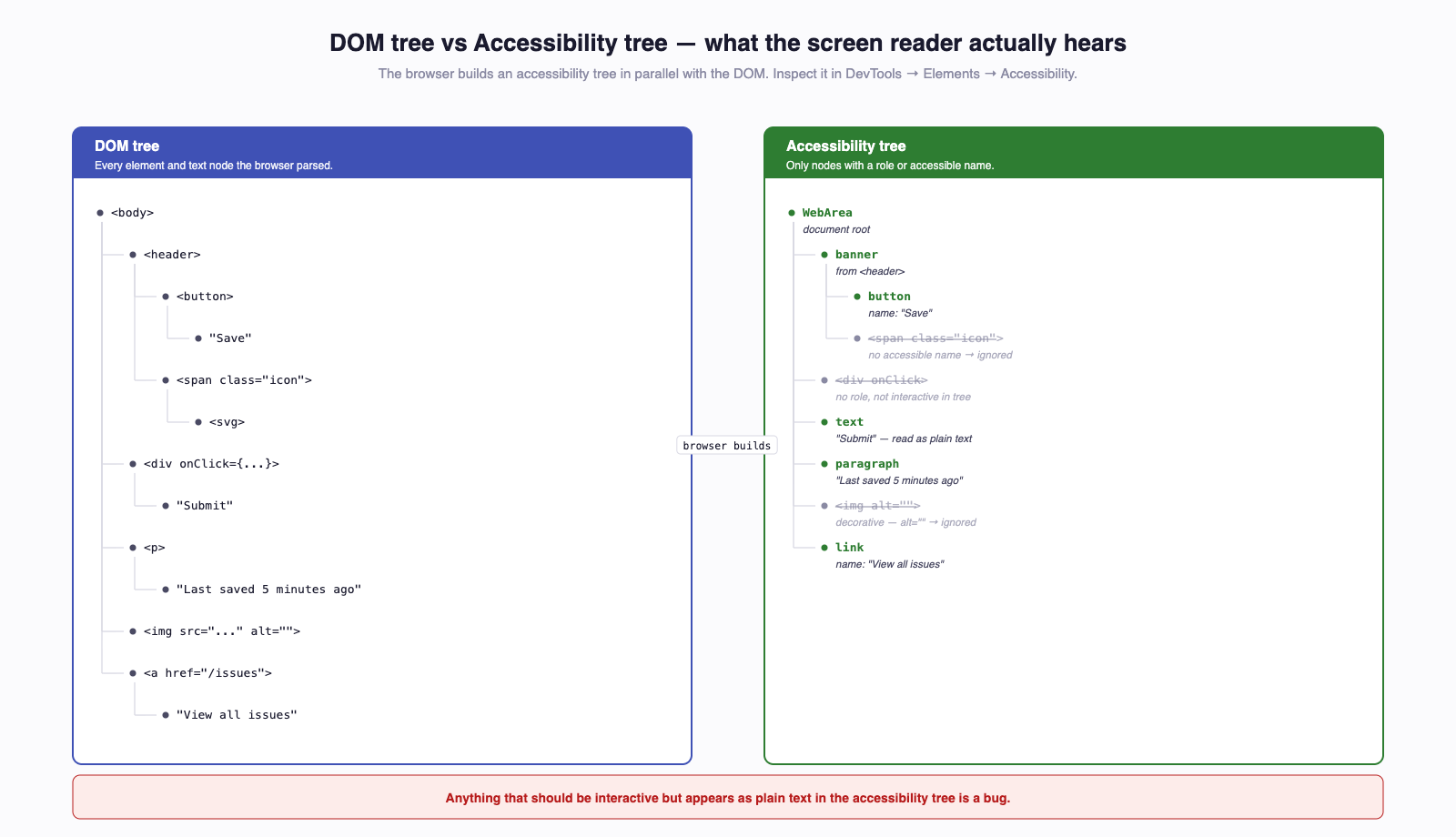
Spending five minutes inspecting your own page in the accessibility tree is the single fastest way to understand what your screen-reader users hear. Any element that should be interactive but appears as plain text in the tree is an accessibility bug.
8 Screen Reader Basics¶
You do not need to be a fluent screen-reader user to ship accessible software. You do need to spend enough time with one that you can hear the obvious failures in your own work.
8.1 Which Screen Reader to Test With¶
| OS | Tool | How to toggle | Cost |
|---|---|---|---|
| macOS | VoiceOver | Cmd+F5 | Built in |
| Windows | NVDA | Free download from nvaccess.org | Free |
| Windows | JAWS | Industry standard at many enterprises | Paid |
| Android | TalkBack | Settings → Accessibility → TalkBack | Built in |
| iOS/iPadOS | VoiceOver | Settings → Accessibility → VoiceOver | Built in |
For TCSS 460, VoiceOver on macOS or NVDA on Windows are the right defaults — both are free and both are widely used by real screen-reader users.
8.2 The 30-Second Interaction Model¶
Screen readers have two modes:
- Browse / virtual mode — the user navigates a virtual cursor through the page. They read text, jump by heading, jump by landmark, jump by link. This is reading.
- Forms / focus mode — the cursor enters an input; keystrokes go to the input instead of moving the screen reader. This is typing.
Most screen readers switch between these automatically when focus enters or leaves an input.
The key navigation shortcuts (VoiceOver — others differ slightly):
- Ctrl+Option+Right/Left — next/previous element
- Ctrl+Option+Cmd+H — next heading
- Ctrl+Option+Cmd+L — next link
- Ctrl+Option+U — open the rotor (jump menu by headings, links, landmarks, form controls)
The rotor is what makes a well-marked-up page navigable in seconds: a screen-reader user almost never reads top-to-bottom. They jump by heading, then dive into the section they want.
8.3 Spend Ten Minutes With Your Own App¶
The single most valuable accessibility exercise you can do as a sighted developer:
- Turn VoiceOver on (Cmd+F5).
- Open your Sprint 5+ app.
- Close your eyes, or turn off your monitor.
- Try to perform one realistic flow — sign in, create an issue, view a list — using only the screen reader.
You will discover within five minutes which of your buttons have no labels, which images have no alt text, which form errors are never announced, and which loading states leave the user in silence wondering whether anything happened. That is the experience some fraction of your users have on every page you ship.
9 Testing Tools and Workflow¶
There is no single tool that catches every accessibility bug. The reliable workflow combines automation (cheap, catches the obvious bugs) with manual testing (expensive, catches the rest).
9.1 The Tools¶
| Tool | What it does |
|---|---|
| axe DevTools (browser ext) | Runs the axe-core engine against the current page. Free tier is fine for course work; ~zero false positives by design. |
| Lighthouse (Chrome built-in) | Runs axe under the hood plus extras; produces a 0–100 score and a report. Useful for tracking trends. |
| WAVE (WebAIM) | Visually annotates the page itself — overlays icons on every issue in place. |
| eslint-plugin-jsx-a11y | Static analysis at PR time. Catches missing alt, role mismatches, click-without-key handlers. Currently 6.x. |
| Chrome DevTools Color Picker | Live contrast ratio checker on every color value in the page. |
9.2 The 30 / 70 Rule¶
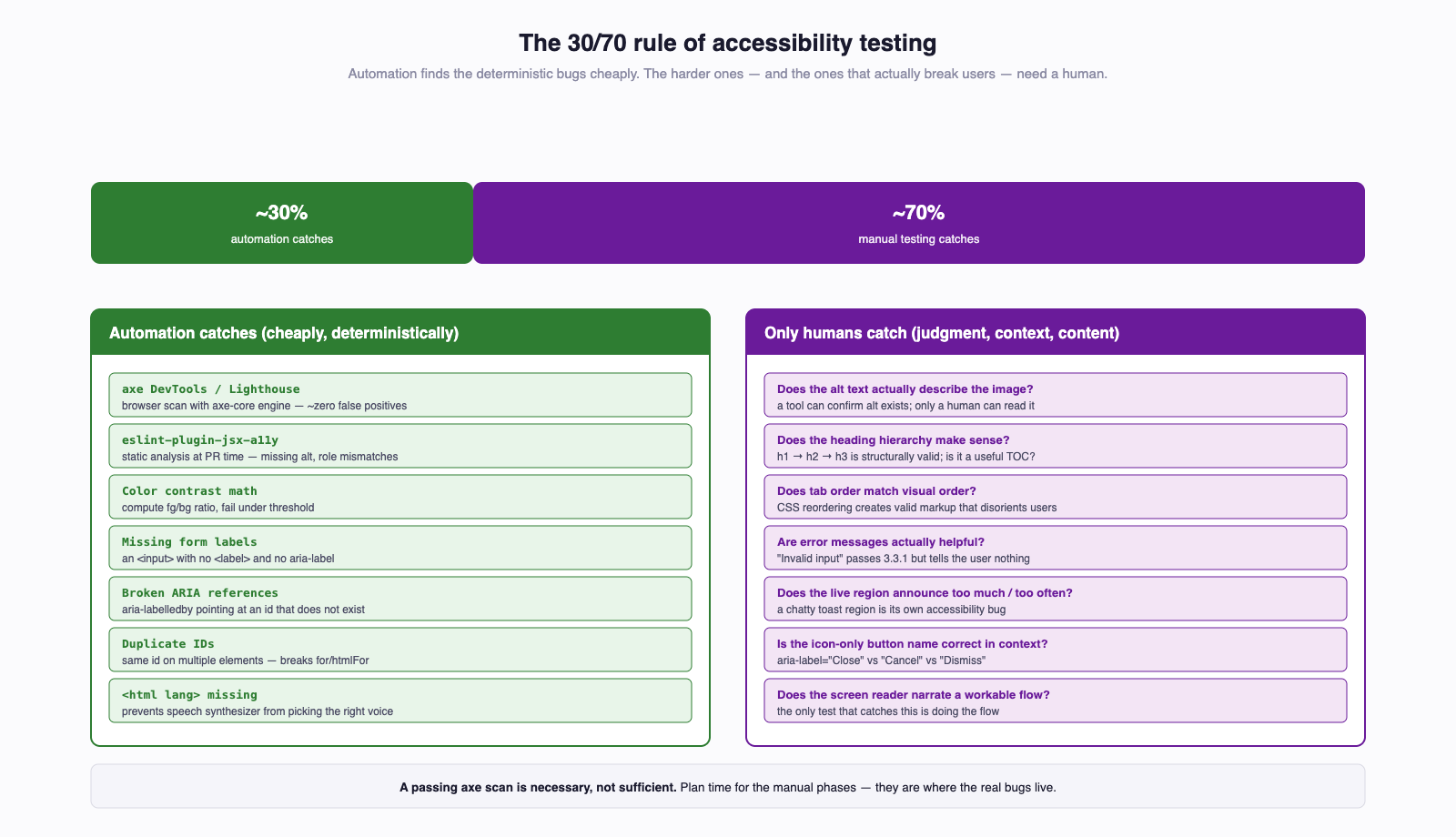
Automated tools catch the things they can deterministically check: missing alt, color contrast that fails the math, broken ARIA references, duplicate IDs, missing form labels.
What they cannot catch: whether your alt text actually describes the image. Whether your heading hierarchy makes sense as a table of contents. Whether tab order matches visual order. Whether your error message tells the user what went wrong. Whether your live region announces too much, too often. All of that requires a human.
9.3 The Four-Phase Audit¶
This is the audit you run on every page before considering it done. We will do it formally in §13's Try It Yourself.
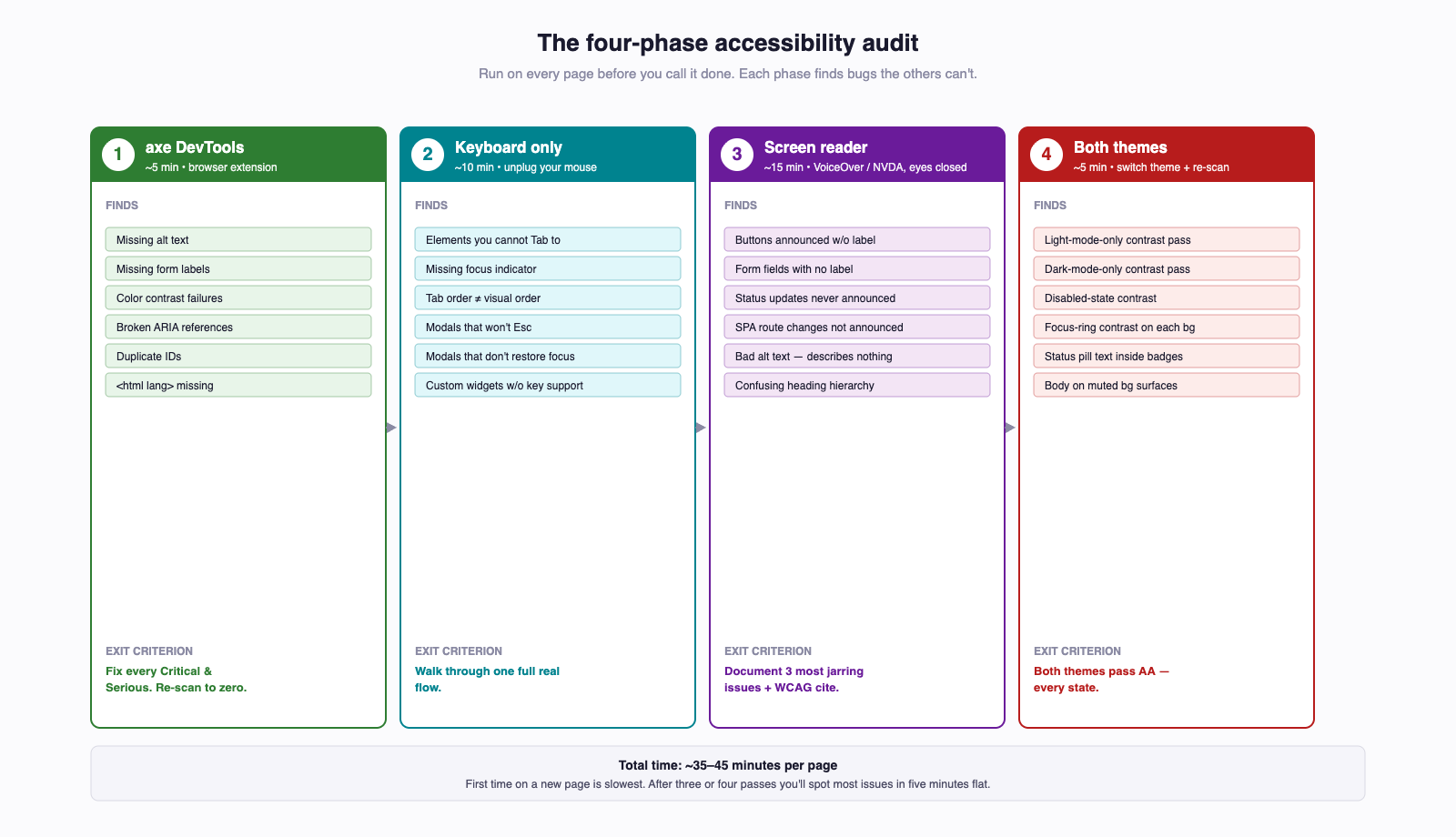
- axe DevTools — open the page, run the scan, fix every error and warning.
- Keyboard only — unplug the mouse, navigate the entire page using only Tab, Shift+Tab, Enter, Space, and arrow keys.
- Screen reader — enable VoiceOver (or NVDA) and navigate the page with eyes closed for ten minutes.
- Contrast in both themes — switch the site between light and dark, scan with axe again in each theme.
This workflow is what gets you from "axe passes" to "actually accessible."
10 React-Specific Accessibility Patterns¶
React has no accessibility model of its own — it renders to the same DOM the rest of the web uses, so every rule above still applies. The React-specific bits are the gotchas that come from JSX and the SPA navigation model.
For React fundamentals, see React Fundamentals — this section is the a11y overlay on top of those patterns.
10.1 JSX Attribute Renames¶
JSX uses htmlFor instead of for, className instead of class, and camelCase event names. The two that bite a11y first:
{/* WRONG: copy-pasted from an HTML example */}
<label for="email">Email</label>
<input id="email" />

{/* RIGHT */}
<label htmlFor="email">Email</label>
<input id="email" />
The for attribute is a JavaScript reserved word — JSX renames it to htmlFor. Get this wrong and the label is no longer associated with the input. The screen reader announces the input as unlabeled.
10.2 Install eslint-plugin-jsx-a11y¶
The most useful tool in your React a11y workflow is the ESLint plugin. It is included by default in create-next-app and the standard React Vite setups in 2026. If yours is missing it (check your package.json):
// .eslintrc.json or eslint.config.js — extend recommended
{
  "extends": [
    "plugin:jsx-a11y/recommended"
  ]
}
The plugin catches at PR-review time:
<img>withoutalt<a>with nohref(use<button>instead)<a>withhref="#"and a click handler (same)onClickon a non-interactive element with no keyboard handlerrolevalues that do not existrole="img"on an SVG with no accessible name- ARIA properties that do not exist or do not belong on the role they are attached to
The current major version is 6. Treat its warnings as errors in CI.
10.3 Focus Management on Route Change¶
This is the single biggest a11y gap in modern SPAs.
When a normal page loads, the browser moves focus to the document body and the screen reader announces the new page title. SPA navigation does neither — clicking a <Link> swaps the rendered components but does not move focus. The screen reader keeps reading from wherever it was; the keyboard user's Tab continues from the link they just clicked, which is now in a different document context.
The pattern: focus the page heading on every route change.
// In your route component
function IssueDetailPage({ id }: { id: string }) {
  const headingRef = useRef<HTMLHeadingElement>(null);

  useEffect(() => {
    headingRef.current?.focus();
  }, [id]);

  return (
    <main>
      <h1 ref={headingRef} tabIndex={-1}>
        Issue #{id}
      </h1>
      ...
    </main>
  );
}
Two things to notice:
tabIndex={-1}makes the<h1>focusable by.focus()but not by Tab. We do not want users tabbing into a heading.- The dependency on
idre-fires the focus on each navigation, even within the same route component.
A fancier version focuses a <main tabIndex={-1}> so the screen reader announces the main landmark. Either pattern is fine; doing nothing is not.
10.4 Modal Dialogs — The <dialog> Element¶
Building an accessible modal from scratch is genuinely hard: focus trap, focus restoration on close, Escape to close, inert background, ARIA labeling, keyboard support inside the modal. As of 2026, the browser does all of this for you with the native <dialog> element, which has reached universal support across Chrome, Firefox, Safari, and Edge and is in Baseline.
function ConfirmDialog({ onConfirm }: { onConfirm: () => void }) {
  const ref = useRef<HTMLDialogElement>(null);

  return (
    <>
      <button onClick={() => ref.current?.showModal()}>Delete issue</button>

      <dialog ref={ref} aria-labelledby="dlg-title">
        <h2 id="dlg-title">Confirm deletion</h2>
        <p>This issue and all its comments will be permanently removed.</p>
        <form method="dialog">
          <button value="cancel">Cancel</button>
          <button value="confirm" onClick={onConfirm}>Delete</button>
        </form>
      </dialog>
    </>
  );
}
What dialog.showModal() gives you for free:
- Focus moves into the dialog when it opens (to the first focusable element).
- Focus is trapped inside while it is open — Tab stays within the dialog.
- Escape closes the dialog and returns focus to the element that opened it.
- The rest of the page is
inertwhile the dialog is open — screen readers cannot reach background content. <form method="dialog">lets the form submit close the dialog without a page reload.
For older codebases, or when you need cross-browser support for very old browsers, the manual pattern is aria-modal="true" plus a focus-trap library (focus-trap-react is the standard). For new code in 2026, <dialog> is correct.
10.5 Live Regions for Async Updates¶
The pattern from §7.3 in React form:
function MessageList() {
  const { status, data, error } = useApi<Message[]>("/messages");

  return (
    <section aria-labelledby="msg-heading">
      <h2 id="msg-heading">Messages</h2>

      <div aria-live="polite" aria-busy={status === "loading"}>
        {status === "loading" && <p>Loading messages…</p>}
        {status === "error"   && <p role="alert">Failed to load: {error}</p>}
        {status === "success" && (
          <ul>
            {data.map(m => <li key={m.id}>{m.text}</li>)}
          </ul>
        )}
      </div>
    </section>
  );
}
The screen reader hears "Loading messages..." then, when data arrives, the new content is announced automatically. aria-busy tells AT explicitly that the region is updating.
10.6 Accessible Primitive Libraries¶
For complex widgets — comboboxes, date pickers, listboxes, tree views, complex menus — even very experienced developers get the keyboard interactions wrong. The mature ecosystem solution is to use a library that has done it for you:
- React Aria (Adobe) — hooks for fully-accessible primitives; you supply the styling.
- Headless UI (Tailwind Labs) — accessible unstyled components; pairs naturally with Tailwind.
- Radix Primitives — popular mid-level primitives.
For the TCSS 460 check-offs, the patterns in this guide cover everything you need with semantic HTML and basic ARIA. For your own future projects, reach for one of these libraries before building a date picker by hand.
11 Next.js-Specific Accessibility Patterns¶
Next.js renders to the same DOM as React; everything in §10 still applies. The Next.js-specific overlay is page metadata and a few SSR considerations.
For Next.js fundamentals, see Next.js.
11.1 Per-Page metadata Export¶
Each page should set a unique, descriptive <title>. Screen readers announce the page title on every navigation; identical or empty titles across routes leave users disoriented.
// app/issues/[id]/page.tsx
import type { Metadata } from "next";

export async function generateMetadata(
  { params }: { params: { id: string } }
): Promise<Metadata> {
  const issue = await getIssue(params.id);
  return {
    title: `Issue #${issue.id}: ${issue.title}`,
    description: `Bug report: ${issue.title}. Status: ${issue.status}.`,
  };
}

export default function IssueDetailPage({ params }: { params: { id: string } }) {
  ...
}
For static metadata, export a metadata object directly:
// app/about/page.tsx
import type { Metadata } from "next";

export const metadata: Metadata = {
  title: "About",
  description: "About the TCSS 460 Bug Tracker.",
};
Pair this with a title.template in the root layout so every page gets a consistent suffix:
// app/layout.tsx
export const metadata: Metadata = {
  title: {
    template: "%s | Bug Tracker",
    default: "Bug Tracker",
  },
};
The screen reader now announces "Issue #42: Login broken | Bug Tracker" on navigation — every page is uniquely identified.
11.2 Use <Link> from next/link¶
import Link from "next/link";

{/* RIGHT: real anchor under the hood, real navigation */}
<Link href="/issues/42">View issue #42</Link>

{/* WRONG: not a link; loses back/forward, middle-click, ctrl-click, screen-reader rotor */}
<div onClick={() => router.push("/issues/42")}>View issue #42</div>
<Link> renders an actual <a href> and uses the App Router for client-side navigation underneath. Replacing it with a <div onClick> "for performance" or "for design" breaks every browser convention link users rely on, including the screen-reader rotor's "list all links on this page" feature.
11.3 loading.tsx and Live Regions¶
Next.js's loading.tsx files are rendered via Suspense while a route segment is fetching. Wrap their content in a live region so the screen reader announces when content is loading:
// app/issues/loading.tsx
export default function Loading() {
  return (
    <div role="status" aria-live="polite">
      <p>Loading issues…</p>
    </div>
  );
}
role="status" is aria-live="polite" plus a hint that this region's purpose is status reporting. It is the right role for "loading..." messages.
11.4 Focus on Navigation in the App Router¶
The same gap from §10.3 applies to Next.js: the App Router does not automatically move focus on navigation. The pattern is the same — focus the page heading on each route mount. There is no Next.js-specific magic for this.
A useful place to put it is a small client component in your root layout that listens to usePathname() and focuses the <main>:
"use client";
import { useEffect, useRef } from "react";
import { usePathname } from "next/navigation";

export function FocusOnRouteChange() {
  const pathname = usePathname();
  const ref = useRef<HTMLDivElement>(null);
  useEffect(() => { ref.current?.focus(); }, [pathname]);
  return <div ref={ref} tabIndex={-1} />;
}
Place that component just inside <main> in app/layout.tsx. Now every navigation moves focus there, and the screen reader re-announces the page.
11.5 Server vs Client Components Are A11y-Equivalent¶
There is no accessibility difference between Server Components and Client Components — both render to the same HTML. Use whichever fits the data-fetching model; the rules in this guide apply equally to either side of the boundary.
12 Common Mistakes¶
A consolidated checklist of the bugs that ship most often. If you are reviewing a PR for accessibility, scan for these first.
| Mistake | Fix |
|---|---|
<div onClick> instead of <button> |
Use <button>. (§2.1) |
outline: none with no :focus-visible replacement |
Replace, do not delete, the focus ring. (§3.2) |
| Placeholder used as the only label | Add a real <label>. (§5.1) |
alt="image of a cat" |
Drop the "image of"; just describe. (§6.1) |
Missing alt on <img> in JSX |
Install eslint-plugin-jsx-a11y and treat warnings as errors. (§10.2) |
| Carousel / accordion / dropdown without keyboard support | Use <button> triggers and arrow-key navigation. (§3.5) |
| Modal that does not trap focus or restore focus on close | Use <dialog> + showModal(). (§10.4) |
| Auto-playing video, audio, or large animated GIF | Require explicit user action; provide pause/mute controls. (§6.5) |
| Form errors with no programmatic association | aria-describedby from input to error message; aria-invalid on input. (§5.2) |
| "Click here" / "Read more" / "Learn more" link text | Make the link text describe the destination. (§2.4) |
| Color alone to convey state (red border, no icon, no text) | Add a second channel: icon, text, shape. (§4.2) |
Skipping heading levels (<h1> → <h3>) |
Use sequential levels; demote/promote with CSS not markup. (§2.3) |
aria-hidden="true" on a parent of a focusable element (phantom focus trap) |
If you aria-hidden something, make sure nothing inside is focusable. (§7.5) |
role="button" on a <div> with tabIndex={0} and onClick only |
Use <button>. (§2.1) |
| SPA route change does not move focus or announce the new page | Focus the <h1> (or <main tabIndex={-1}>) on each route change. (§10.3, §11.4) |
Identical <title> on every page in a Next.js app |
Per-page metadata.title or generateMetadata. (§11.1) |
<a href="#"> with a click handler |
Use <button> for actions; <a href="..."> for navigation. (§2.4) |
13 Try It Yourself — Accessibility Audit on Your Sprint Work¶
Pick one page from your current Sprint 5+ app — ideally one with a form, a list, and a navigation header (a "create issue" or "issue detail" page is perfect).
You will run all four phases below. Total time: about 45 minutes. Document your findings as you go.
13.1 Phase 1 — axe DevTools¶
- Install the axe DevTools browser extension from the Chrome Web Store or Firefox Add-ons.
- Open your chosen page in the browser.
- Open DevTools → axe DevTools tab → Scan ALL of my page.
- Screenshot the results — number of issues by severity (Critical, Serious, Moderate, Minor).
- Fix every Critical and Serious issue. Re-scan. Repeat until both are zero.
- Read every Moderate issue; fix the ones that apply. Some are tooling-level false positives in dynamic apps — note which.
What you are looking for: missing alt text, missing form labels, color contrast failures, broken ARIA references, duplicate IDs, missing language attribute on <html>.
13.2 Phase 2 — Keyboard Only¶
- Unplug your mouse (or put a sticky note over your trackpad).
- Reload the page.
- Press Tab and watch the focus indicator. Walk through the entire page using only Tab, Shift+Tab, Enter, Space, and arrow keys.
- Try to complete a realistic flow — fill out a form, submit it, navigate to a new page, log out.
What you are looking for, and fixing as you find it:
- Any element you cannot reach with Tab — likely a
<div onClick>masquerading as a button. - Any element where the focus indicator is invisible or obviously hidden — likely an
outline: nonewith no replacement. - Tab order that does not match visual order — likely a CSS layout that flowed elements out of DOM order.
- Modals you cannot escape with Esc, or that drop you back at the top of the page on close instead of at the trigger.
13.3 Phase 3 — Screen Reader¶
- Turn on VoiceOver (Cmd+F5 on macOS) or NVDA (Windows; download from
nvaccess.orgif you do not have it). - Close your eyes, or rotate your monitor away.
- Spend ten minutes trying to perform one realistic flow with screen reader output only.
- Note the three most jarring issues:
- A button announced as "button" with no label.
- A form field with no label, or a label that reads as something nonsensical.
- A status message (saved, loading, error) that is never announced.
- A page where the screen reader keeps reading the previous page's content after navigation.
Fix at least those three. Document them with: the location on the page, what the screen reader said, what it should say, your fix.
13.4 Phase 4 — Contrast in Both Themes¶
- Switch your app to light mode, run axe DevTools again, fix any contrast failures.
- Switch to dark mode, run axe DevTools again, fix any contrast failures specific to dark mode.
- Pay special attention to:
- Body text on muted backgrounds.
- Disabled-button text (often legitimately fails AA — that is by design, but every other state must pass).
- Focus rings.
- Text inside colored badges, alerts, and status pills.
13.5 Document Your Findings¶
In a short markdown file or a comment on the assignment, write up:
- Three issues you found across the four phases.
- The WCAG 2.2 success criterion each issue violated (e.g., 1.4.3 Contrast Minimum, 4.1.2 Name, Role, Value, 3.3.1 Error Identification). The WCAG 2.2 Quick Reference has the canonical list.
- The fix you applied — diff, before/after screenshot, or both.
This is the deliverable shape industry uses for accessibility regression reports. Get fluent with it now.
14 Summary¶
| Concept | Key Point |
|---|---|
| Why a11y | Legal (ADA, Section 508, EAA), ethical, practical (UX/SEO), and cheap if early. |
| Hierarchy | Semantic HTML > ARIA > custom. Native first, always. |
| First Rule of ARIA | Don't use ARIA when a semantic HTML element does the job. |
<button> vs <div> |
<button> gives keyboard, focus, role, and disabled state for free. |
| Heading hierarchy | One <h1> per page; never skip levels; headings are screen-reader navigation. |
| Keyboard | Every interactive element reachable via Tab; never outline: none without a replacement. |
| Skip link | First focusable element on every page, jumps to <main>. |
| Contrast | WCAG 2.2 AA = 4.5:1 body text, 3:1 large text and UI; both light and dark themes. |
| Color alone | Always pair color with a second channel (icon, text, shape). |
| Form labels | Every input has a <label>; placeholder is not a label. |
| Form errors | aria-describedby from input to error; aria-invalid on the input itself. |
| Alt text | Informative images get descriptive alt; decorative get alt=""; never "image of...". |
| ARIA basics | aria-label, aria-labelledby, aria-describedby, aria-expanded, aria-live. |
| Live regions | Toasts, search results, status updates need aria-live="polite" or role="alert". |
| Screen reader test | Spend 10 minutes navigating your own app with eyes closed before submitting. |
| 30/70 rule | Automation catches ~30% of issues; the other 70% requires human testing. |
| React: alt enforcement | TypeScript JSX does not enforce alt; eslint-plugin-jsx-a11y does. |
| React: focus on route | SPA navigation does not move focus; you must explicitly focus a heading or <main>. |
| React: modals | Use the native <dialog> element + showModal() — universal browser support. |
| Next.js: page titles | Per-page metadata or generateMetadata so each route is uniquely announced. |
| Audit | Four phases: axe → keyboard → screen reader → contrast in both themes. |
15 References¶
Standards and Guidelines:
- WCAG 2.2 Quick Reference — the actual checklist used by professionals; bookmark it.
- Web Content Accessibility Guidelines (WCAG) 2.2 — the W3C Recommendation in full.
- WAI-ARIA Authoring Practices Guide (APG) — patterns and keyboard interactions for every common widget.
- Section 508 of the Rehabilitation Act — U.S. federal accessibility law.
- European Accessibility Act (EAA) — EU-wide accessibility law in effect since June 28, 2025.
Reference Documentation:
- MDN — Web Accessibility — comprehensive accessibility reference.
- MDN —
<dialog>element — native modal dialog. - MDN —
:focus-visible— the modern focus-ring pseudo-class. - The A11Y Project Checklist — concise practitioner checklist organized by POUR.
Tools:
- axe DevTools (Deque) — the axe-core browser extension.
- WAVE (WebAIM) — visual in-page accessibility annotator.
- eslint-plugin-jsx-a11y — ESLint plugin for React JSX (currently major version 6).
- WebAIM Contrast Checker — the canonical contrast tool.
Industry Data and Case Law:
- WebAIM Million Report (2025) — annual audit of the top one million home pages; 94.8% had detectable WCAG errors.
- Robles v. Domino's Pizza, 913 F.3d 898 (9th Cir. 2019) — Ninth Circuit ruling that ADA applies to commercial websites.
- National Federation of the Blind v. Target Corp. (settled 2008) — first major e-commerce accessibility class action.
Course Cross-References:
- Accessibility on the Web — Week 9 concept reading; POUR principles, WCAG levels, AT landscape.
- HTML, CSS & the DOM — semantic HTML foundation.
- Consuming a Web API from the Browser —
aria-livepatterns for loading/error states. - React Fundamentals — React-specific patterns this guide builds on.
- Next.js — Next.js-specific patterns this guide builds on.
16 Further Reading¶
External Resources
- Inclusive Components by Heydon Pickering — pattern-by-pattern teardowns of every common widget. Read one a week.
- Deque University — paid courses, but the free articles are gold.
- Smashing Magazine — Accessibility tag — the most consistent stream of practitioner-quality articles.
- A11y Weekly newsletter — Friday digest of the week's accessibility news, articles, and tools.
- Sara Soueidan — Practical Accessibility — paid course, widely considered the best practitioner training available.
- Can I Use — for verifying browser support of any HTML/CSS/ARIA feature you reach for (the
<dialog>and:focus-visibledata above came from here).
This guide is part of TCSS 460 — Client/Server Programming, School of Engineering and Technology, University of Washington Tacoma.