HTML, CSS & the DOM¶
TCSS 460 — Client/Server Programming
A fast on-ramp to the three things every browser actually understands: HTML, CSS, and JavaScript talking to the DOM. This is not a comprehensive reference — it is just enough substrate to read DevTools fluently, follow the Week 6 lecture, and understand what React abstracts over in the next guide.
1 Why You Need This (Even Though We're Going Straight to React)¶
The rest of the front-end half of TCSS 460 is built on React and Next.js. So why spend a guide on raw HTML and DOM APIs you will not write directly?
Three reasons:
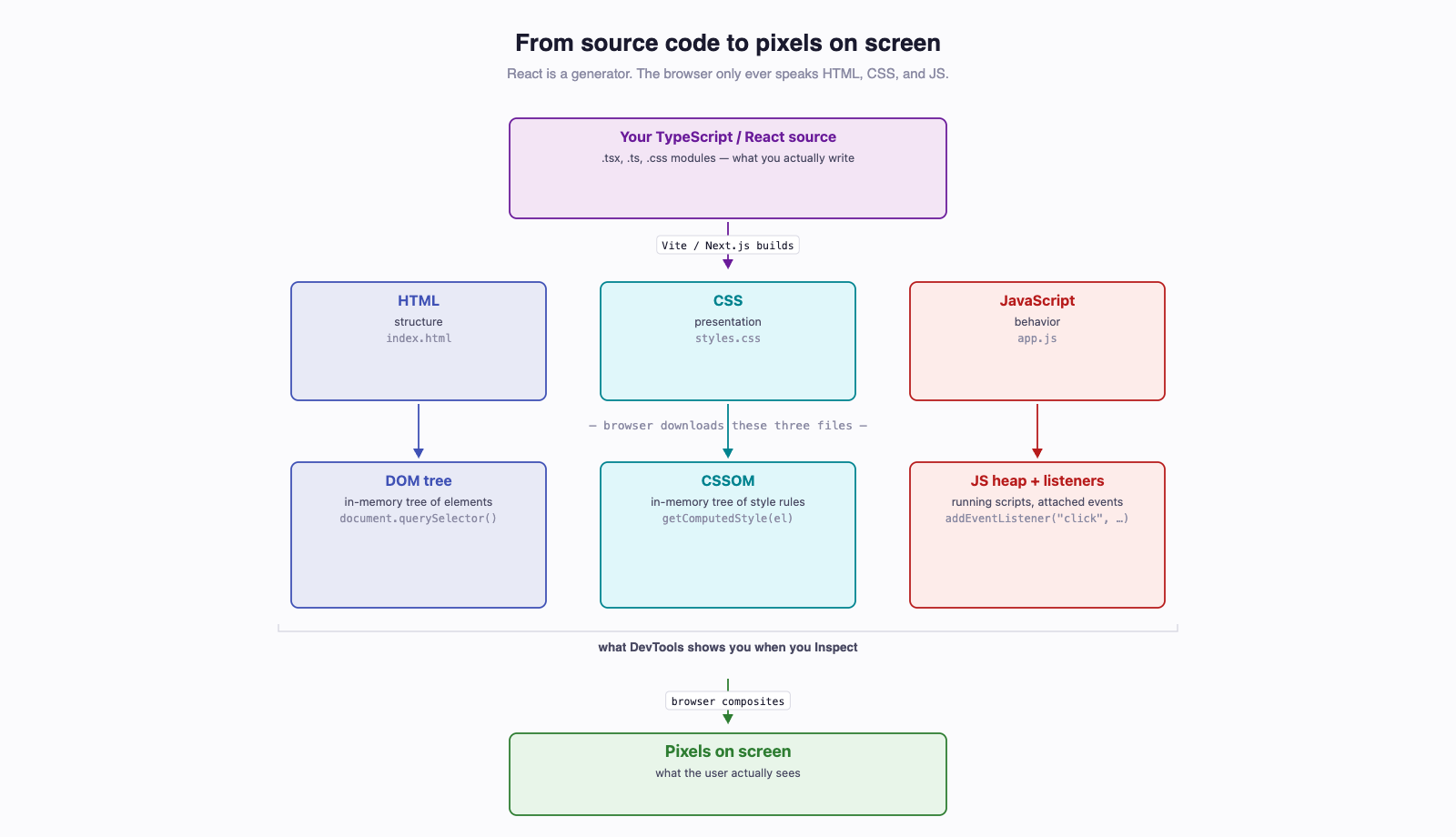
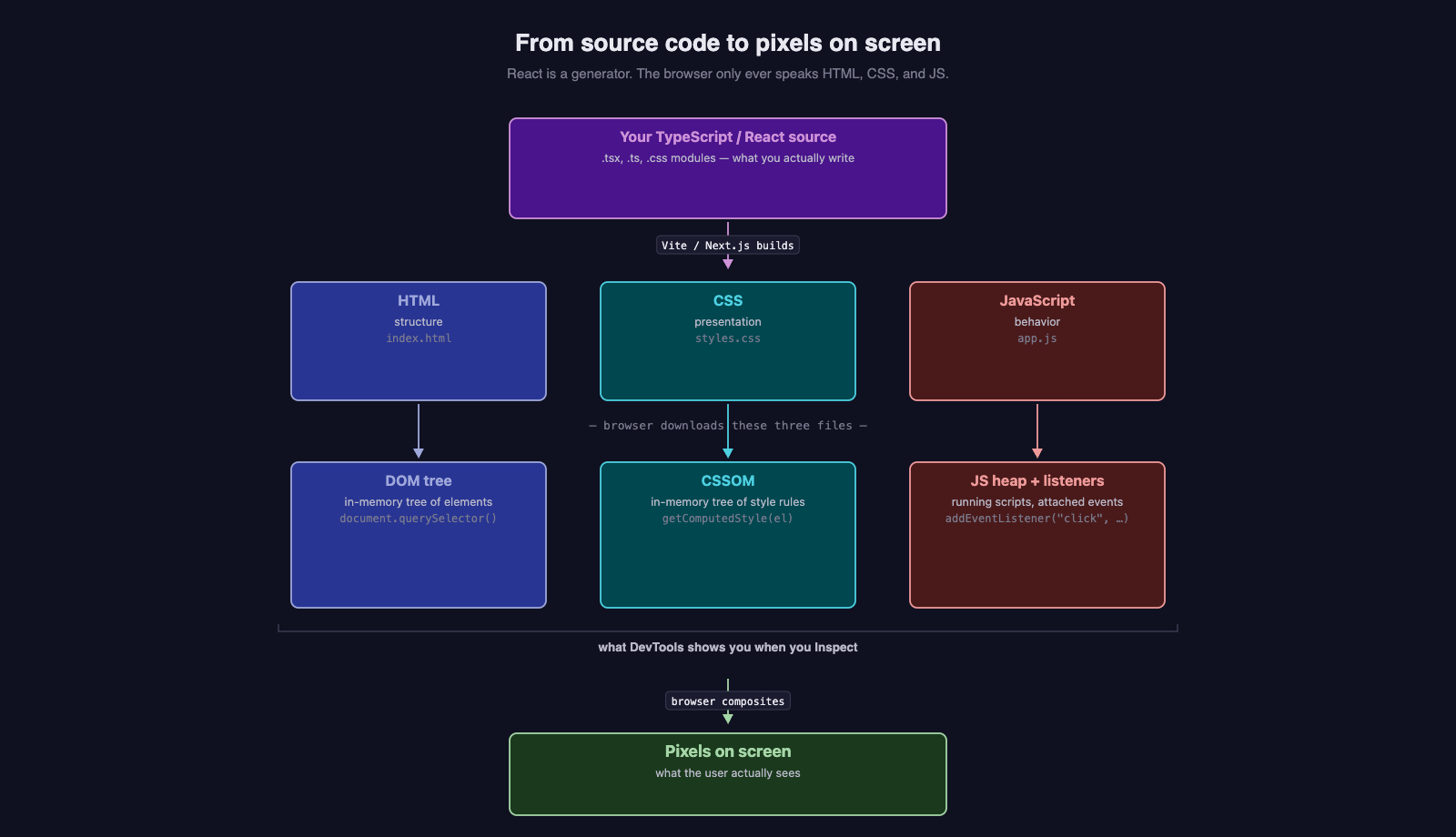
- The browser only speaks three languages. No matter what framework you use — React, Vue, Svelte, Angular — the thing that finally renders in the browser is HTML, CSS, and JavaScript. React is a generator of HTML; the browser does not know React exists.
- Every React app eventually compiles down to these three things. When you ship a React app, the build tool (Vite, Next.js) produces a folder full of
.html,.css, and.jsfiles. That folder is what the browser receives. - DevTools shows you the real output, not your source code. When something does not work, you will open the browser DevTools, look at the rendered HTML, the loaded CSS, and the network requests, and trace the problem back to your React code. You cannot read DevTools without knowing the substrate.
What this guide is and is not
This guide is a fast on-ramp. It covers what you need to recognize HTML/CSS/DOM in the wild, write a small interactive page from scratch once, and feel the cognitive-load problem that motivates React. It is not an HTML/CSS reference — for that, MDN is excellent and linked at the bottom.
2 HTML — The Document¶
HTML (HyperText Markup Language) is the structural skeleton of every web page. It is a tree of nested elements, written in text using tags.
2.1 Vocabulary: Element, Tag, Attribute¶
- Element — the whole thing: opening tag, content, closing tag.
- Tag — the bit in angle brackets:
<a>is the opening tag,</a>is the closing tag. - Attribute —
href="..."andclass="...". Attributes are key/value pairs that configure the element. - Content — the text or nested elements between the tags:
Click me.
A handful of elements are self-closing (no content, no closing tag):
2.2 The Tags You Will Actually Use¶
Out of the ~110 HTML elements, you will reach for maybe a dozen most days:
| Tag | Purpose |
|---|---|
<div> |
Generic block container — the workhorse for layout |
<span> |
Generic inline container — for styling a chunk of text |
<h1>–<h6> |
Headings, in decreasing importance. Use <h1> once per page |
<p> |
Paragraph |
<a> |
Anchor (a link). href is the destination |
<img> |
Image. src is the source URL, alt is the screen-reader description |
<ul>/<ol> |
Unordered (bulleted) / ordered (numbered) list |
<li> |
List item — lives inside <ul> or <ol> |
<form> |
A form container |
<input> |
A form input — type="text", type="email", type="password", etc. |
<button> |
A clickable button |
<label> |
A label tied to an input via for="input-id" |
2.3 Semantic Tags (Briefly)¶
You will see these in real code and in your own React layouts. They behave like <div> visually but carry meaning — for screen readers, search engines, and accessibility tooling.
<header>...site header / logo / nav...</header>
<nav>...primary navigation...</nav>
<main>
  <section>...a thematic group of content...</section>
  <article>...a self-contained piece of content...</article>
</main>
<footer>...site footer...</footer>
We circle back to accessibility (a11y) in Week 8. For now: prefer <header> over <div class="header"> when you mean a header.
2.4 Document Structure¶
Every HTML page has the same skeleton:
<!DOCTYPE html>
<html lang="en">
  <head>
    <meta charset="UTF-8">
    <meta name="viewport" content="width=device-width, initial-scale=1">
    <title>My Page</title>
    <link rel="stylesheet" href="styles.css">
  </head>
  <body>
    <h1>Hello, world</h1>
    <p>Some content.</p>
    <script type="module" src="app.js"></script>
  </body>
</html>
<!DOCTYPE html>— tells the browser "this is HTML5". Always include it.<head>— metadata: title (shown in the browser tab), character encoding, links to CSS, etc. Nothing in<head>is rendered visibly.<body>— the visible content.<script>at the end of<body>— so the HTML is parsed first; you cannot manipulate elements that have not been parsed yet. (More on this in §11.)
2.5 The id and class Attributes¶
These are the two attributes you will use constantly because they are the hooks both CSS and JavaScript reach for.
id— must be unique within the page. Used to grab one specific element.class— can be repeated on many elements, and one element can have multiple classes (space-separated). Used to apply shared styling or behavior.
| Attribute | Uniqueness | CSS selector | DOM API |
|---|---|---|---|
id="x" |
Unique | #x |
document.getElementById("x") |
class="x" |
Reusable | .x |
document.getElementsByClassName("x") or querySelectorAll(".x") |
Rule of thumb: prefer classes for styling, id only when you genuinely need to point at one specific element (e.g., <label for="email-input"> paired with <input id="email-input">).
3 CSS — Styling¶
CSS (Cascading Style Sheets) is how you tell the browser what HTML should look like. Where HTML is structure, CSS is presentation.
3.1 Three Places CSS Can Live¶
<!-- 1. Inline (avoid except for one-off dynamic styles) -->
<p style="color: red; font-size: 18px;">Hi</p>

<!-- 2. Internal (a <style> block in <head>) -->
<head>
  <style>
    p { color: red; }
  </style>
</head>

<!-- 3. External (a separate .css file, linked from <head>) -->
<head>
  <link rel="stylesheet" href="styles.css">
</head>
External is idiomatic for production code — CSS lives in .css files, gets cached by the browser, and stays out of your HTML. Inline is fine for quick experiments and is what React's style={{ color: "red" }} prop produces under the hood.
3.2 The Selector Model¶
A CSS rule has a selector (which elements?) and a declaration block (what styles?):
The most useful selectors:
| Selector | Matches |
|---|---|
button |
Every <button> element |
.primary |
Every element with class="primary" |
#login-btn |
The element with id="login-btn" |
button.primary |
A <button> that also has class="primary" |
nav a |
Every <a> descendant of a <nav> (any depth) |
nav > a |
Every <a> that is a direct child of a <nav> |
button:hover |
A <button> while the mouse is over it (a pseudo-class) |
input[type=email] |
An <input> whose type attribute equals email |
3.3 The Cascade in One Paragraph¶
When two rules target the same element, three things decide which wins, in order: (1) specificity — a more specific selector wins (#x > .x > x); (2) source order — when specificity is equal, the rule written later wins; (3) !important — appending !important to a declaration overrides everything else and is a sign you should rethink your selectors. Do not use it.
Inspecting in DevTools
Right-click any element on a real page and choose Inspect. The Styles panel shows every CSS rule that matches the element, in cascade order, with overridden declarations struck through. This is the single best way to learn how the cascade works in practice.
3.4 The Properties You Will Actually Reach For¶
| Property | What it does |
|---|---|
color |
Text color |
background |
Background color or image |
font-size |
Text size — common values: 14px, 1rem, 1.25em |
font-family |
Typeface — Arial, sans-serif |
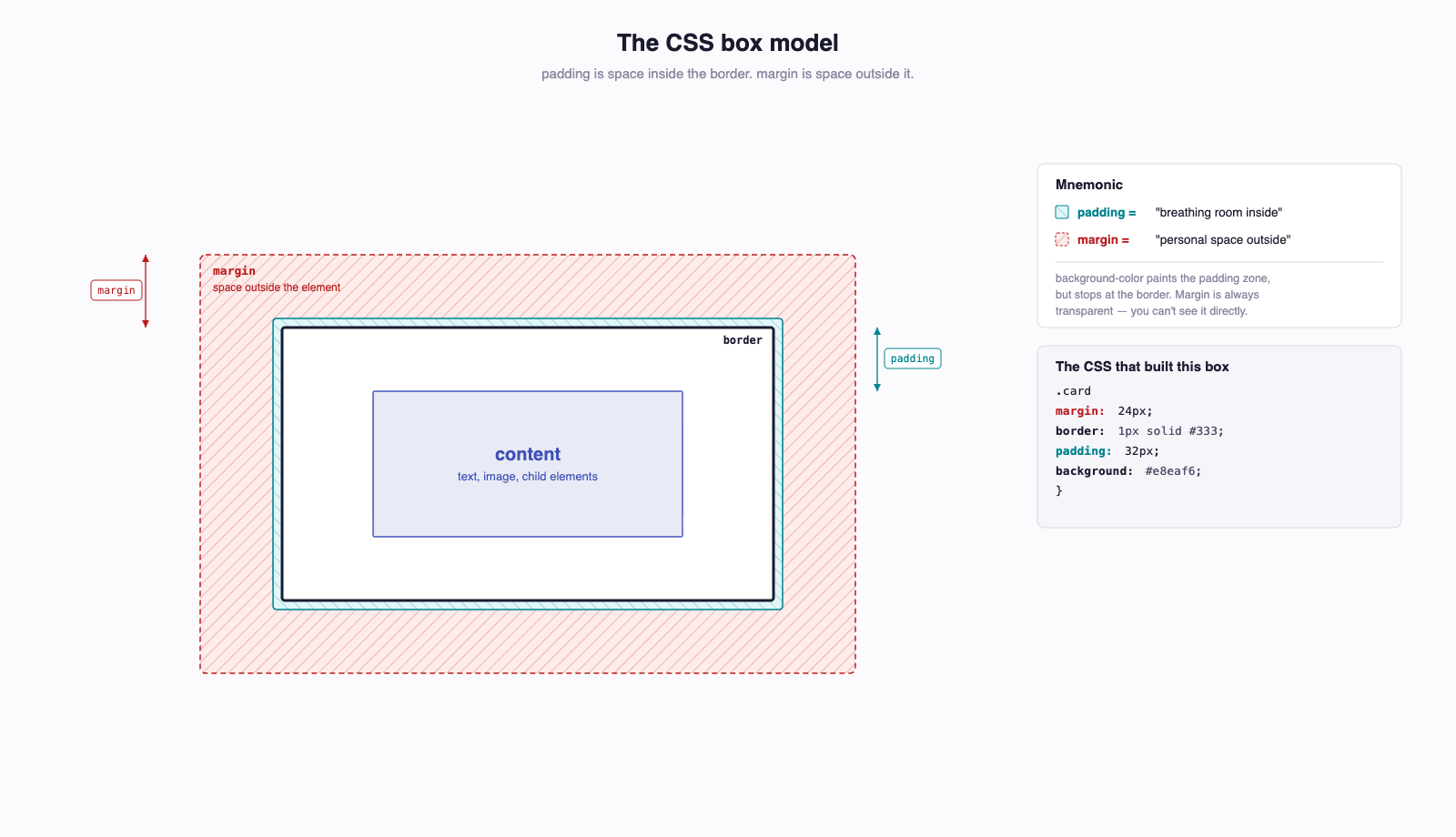
padding |
Space inside the element border, between content and edge |
margin |
Space outside the element, between this and other elements |
border |
Border around the element — 1px solid #ccc |
display |
Layout mode — block, inline, inline-block, flex, grid |
width/height |
Element dimensions |
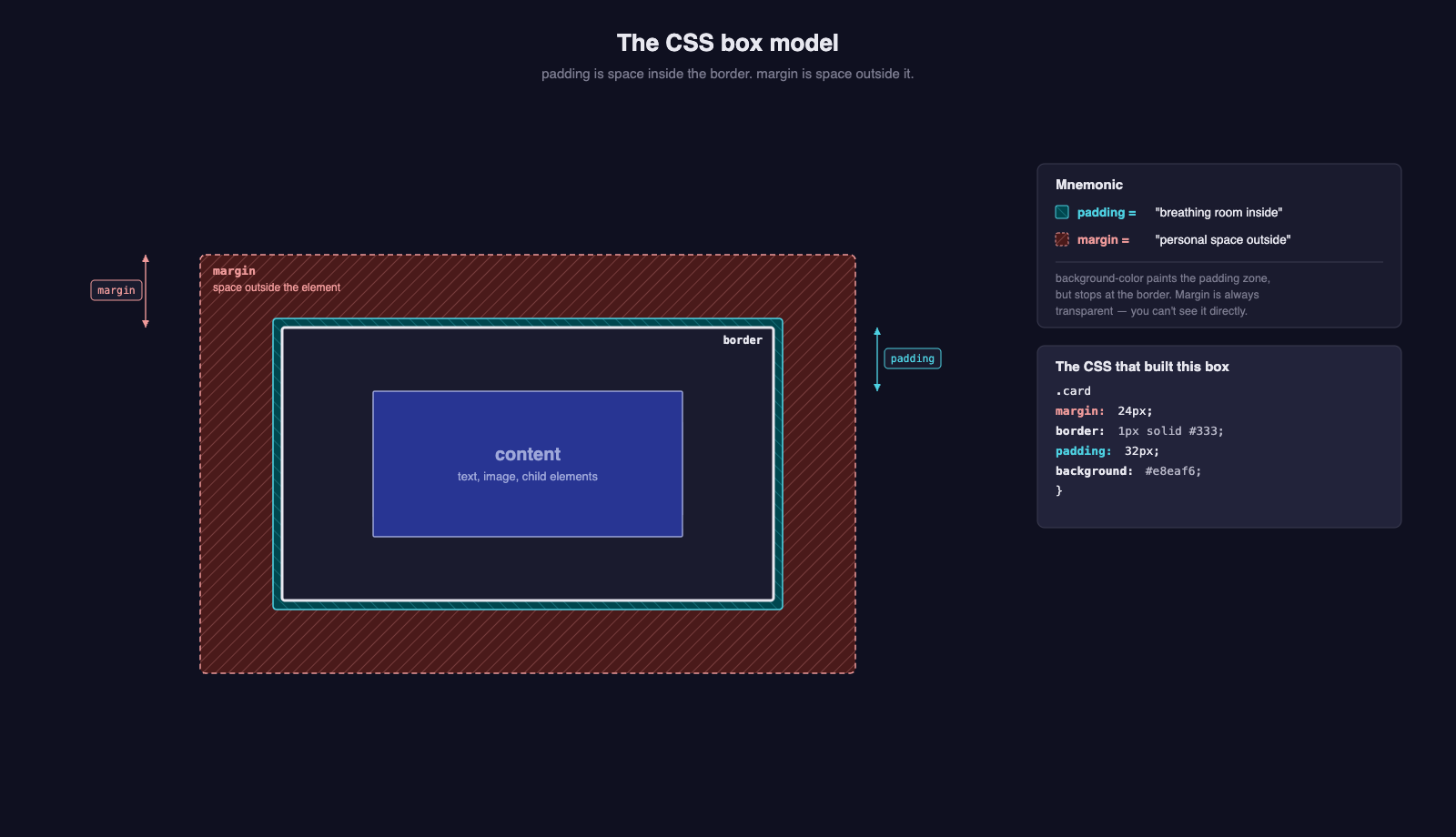
Padding vs margin trips everyone up at first:
3.5 Flexbox in Two Minutes¶
Flexbox is the modern way to lay things out in a row or column. You will use it constantly.
.toolbar {
  display: flex;          /* turn this element into a flex container */
  flex-direction: row;    /* row (default) or column */
  gap: 12px;              /* space between children */
  align-items: center;    /* vertical alignment in a row */
  justify-content: space-between; /* horizontal distribution */
}
Result: "Logo" on the left, "Sign in" on the right, vertically centered, with 12px between them if they were closer. The four properties above (display: flex, gap, align-items, justify-content) handle 80% of layouts you will encounter in the course.
For more, CSS-Tricks' Flexbox guide is the canonical reference.
3.6 A Note on CSS Frameworks¶
You will hear about Tailwind CSS (utility classes like class="flex gap-3 items-center") and Bootstrap (a pre-styled component library). They are both ways to avoid writing raw CSS.
We do not teach them in depth in TCSS 460 — the goal is to understand the mechanics underneath. If you want to use Tailwind in your Sprint 5+ consumer app, that is fine and create-next-app will offer to set it up for you. Just know that under the hood, Tailwind's flex gap-3 is exactly the CSS we showed above.
4 The Browser — What Actually Happens When a Page Loads¶
This anchors the conceptual material in the Week 6 Evolution of Web Programming reading. The five steps every browser performs when it loads a page:
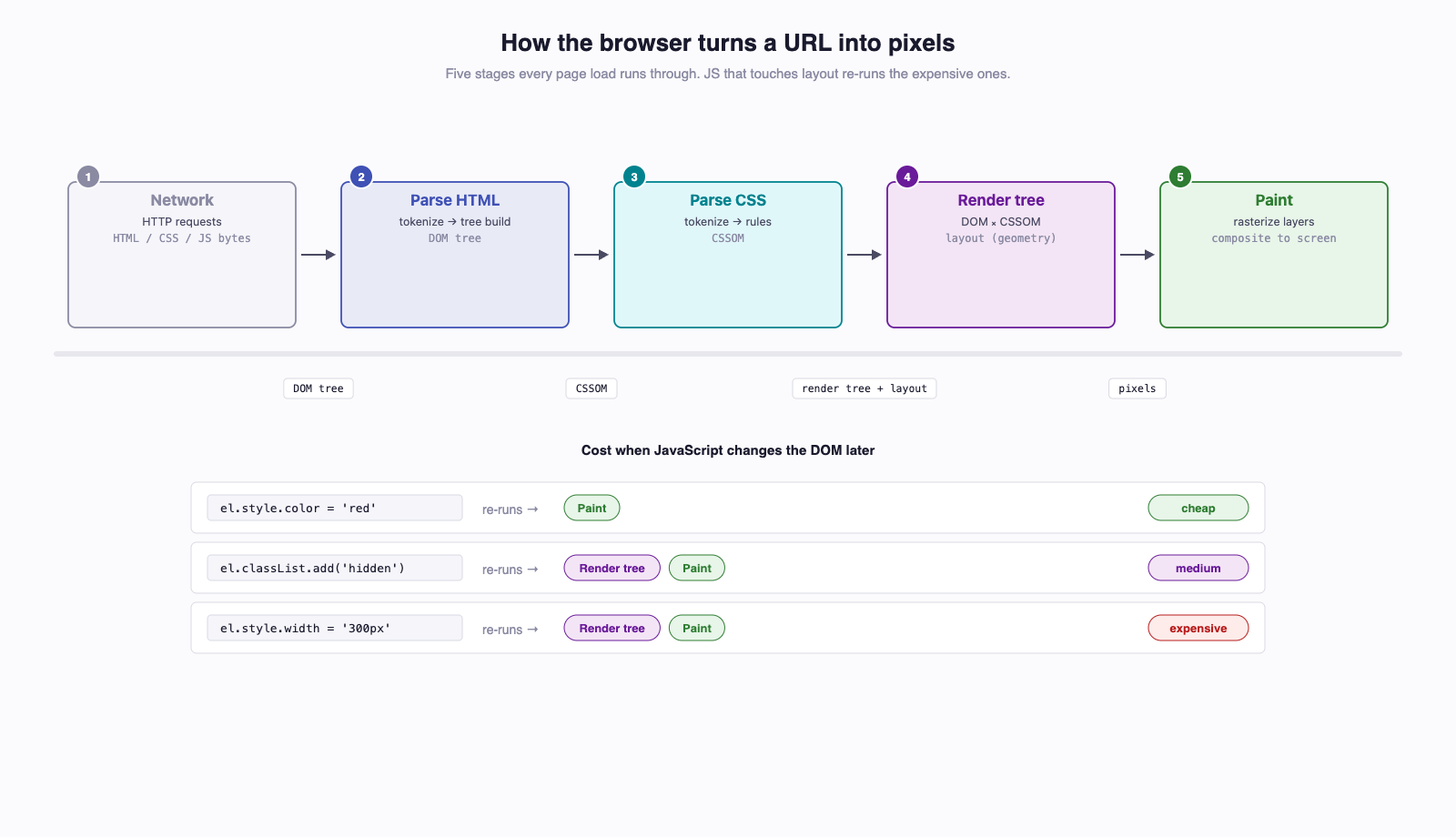
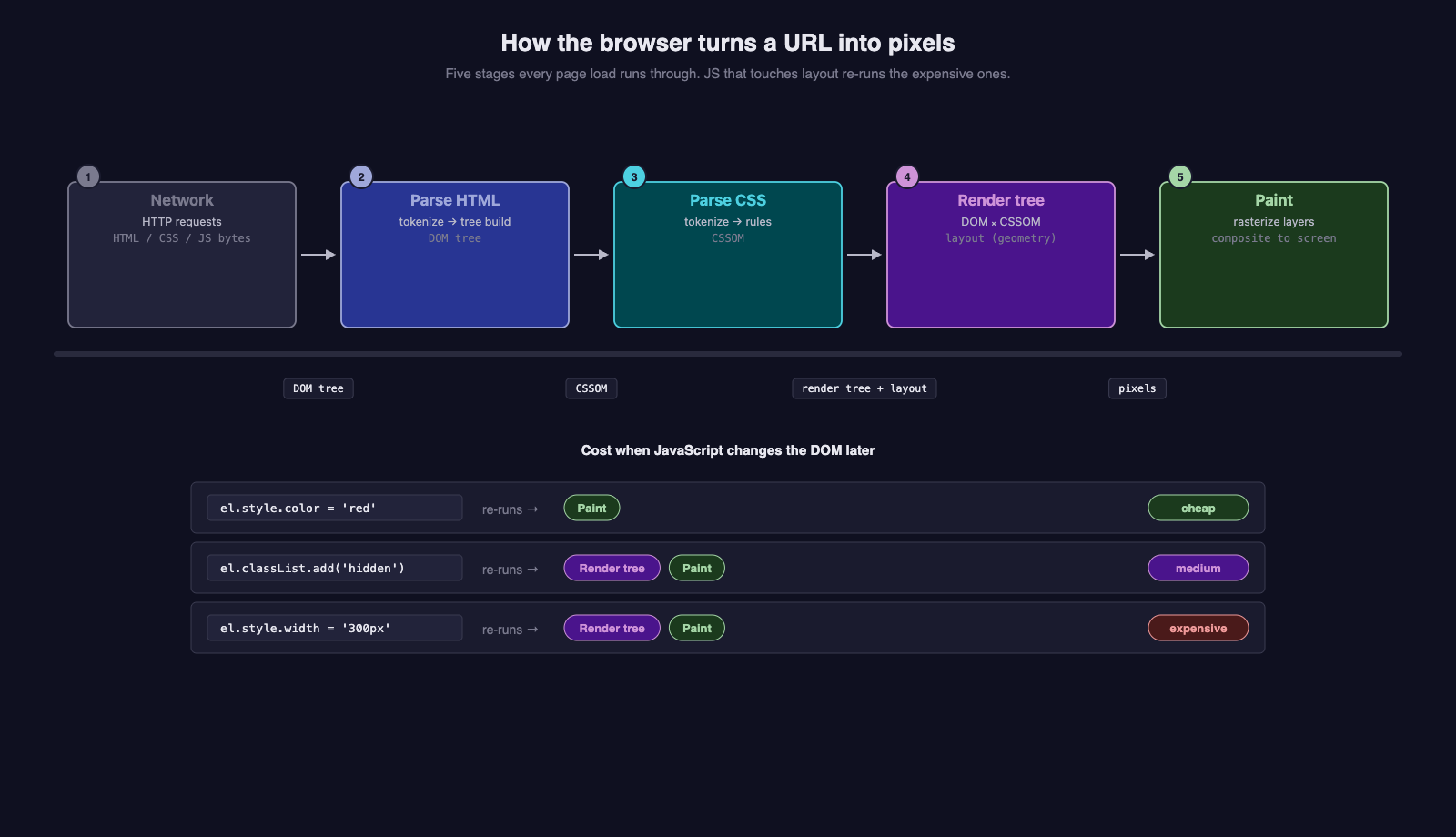
- Network — the browser sends HTTP requests, the server responds with HTML bytes. Subsequent requests fetch CSS, JS, images.
- Parse HTML → DOM tree — the parser turns the HTML text into an in-memory tree of element objects.
- Parse CSS → CSSOM — the same idea for the stylesheets: an in-memory tree of style rules.
- Render tree → Layout — the browser combines DOM + CSSOM and computes the geometry: where every element goes, how big it is.
- Paint and Composite — actual pixels get drawn to the screen.
Whenever JavaScript later changes the DOM (element.style.color = "red"), the browser re-runs whichever of these stages it has to. Touching layout (width, height, anything that moves things) is more expensive than just changing color.
See it live
Open DevTools, switch to the Performance tab, click record, reload the page, stop. The flame chart shows you these stages happening in real time. You do not need to be able to read it in detail — recognizing that "Layout" and "Paint" are the expensive ones is enough.
5 The DOM — JavaScript Talking to the Page¶
The DOM (Document Object Model) is the in-memory tree the browser built in step 2 above. It is a JavaScript object with a global name: document. Anything you can do to a page from JavaScript, you do through document.
5.1 Finding Elements¶
The two methods you will use 95% of the time:
// One element — returns Element | null
const btn = document.querySelector("#login-btn");
const firstParagraph = document.querySelector("p");
const firstPrimaryButton = document.querySelector("button.primary");

// Many elements — returns NodeList<Element>
const allButtons = document.querySelectorAll("button");
const navLinks = document.querySelectorAll("nav a");
The argument is a CSS selector string (the same selectors from §3.2). querySelector returns the first match or null; querySelectorAll always returns a NodeList (possibly empty), which you can iterate with for...of or .forEach.
5.2 Reading from Elements¶
const heading = document.querySelector("h1");
console.log(heading?.textContent);   // The text inside the element

const input = document.querySelector<HTMLInputElement>("#email");
console.log(input?.value);           // For form inputs

const card = document.querySelector(".card");
console.log(card?.classList);        // DOMTokenList of class names
console.log(card?.dataset.userId);   // Reads data-user-id="..."
The querySelector<T> generic is a TypeScript convenience — it tells the type system "this selector matches an HTMLInputElement" so .value is typed correctly.
5.3 Writing to Elements¶
const heading = document.querySelector("h1");
if (heading) {
  heading.textContent = "New title!";
}

const card = document.querySelector(".card");
card?.classList.add("highlighted");
card?.classList.remove("dim");
card?.classList.toggle("expanded");

const btn = document.querySelector("button");
if (btn) {
  btn.style.color = "red";       // inline style — overrides stylesheet
  btn.disabled = true;            // boolean attribute as a property
}
Notice the if (heading) and ?. checks — querySelector returns null when nothing matches, and TypeScript will force you to handle that. Embrace it; the alternative is a runtime crash.
5.4 Creating and Removing Elements¶
// Create
const li = document.createElement("li");
li.textContent = "New item";
li.classList.add("todo-item");

// Insert
const list = document.querySelector("ul");
list?.appendChild(li);                 // adds at the end
// list?.prepend(li);                  // adds at the start
// list?.insertBefore(li, otherChild); // inserts at a specific spot

// Remove
li.remove();                           // removes itself from the DOM
You now have the four DOM verbs: find, read, write, create/remove. With those, you can build any UI — but as we will see in §9, "any UI" gets unwieldy fast.
6 Events — Making the Page Interactive¶
A static page is just markup. For the page to respond to clicks, typing, scrolling, etc., you attach event listeners to elements.
6.1 The Canonical Pattern¶
const btn = document.querySelector("#login-btn");

btn?.addEventListener("click", (event) => {
  console.log("Button was clicked!", event);
});
Three things to notice:
addEventListeneris the modern, idiomatic way to wire up an event. It can attach multiple listeners to the same element and the same event.- The first argument is the event name — a string like
"click","submit","input". - The second argument is a function that runs every time the event fires. The browser passes that function an event object with details.
6.2 The Event Object¶
form?.addEventListener("submit", (event) => {
  event.preventDefault();          // stops the default browser behavior
  console.log(event.target);       // the element that fired the event
  console.log(event.currentTarget); // the element the listener is on
});
event.preventDefault() is the one you will use most. By default, a <form> submit reloads the page (this was how forms worked in 1995). For a single-page app that talks to a JSON API, you almost always want to prevent that and handle the submission yourself.
6.3 The Big Four Events¶
| Event | When it fires |
|---|---|
click |
A pointer click (or keyboard "enter" on a <button>) |
submit |
A form is submitted (always pair with preventDefault()) |
input |
A form field's value changed (every keystroke) |
change |
A form field's value changed and it lost focus (slower than input) |
For text inputs, input fires on every keystroke; change only fires when the user tabs away. For checkboxes and radios, they are nearly equivalent. Use input when you want live feedback, change for "they finished editing."
6.4 Why Not onclick="..."?¶
You will see this in old tutorials:
Three problems:
- It mixes structure and behavior. Your JS logic ends up sprinkled across HTML attributes instead of in
.tsfiles where it can be linted, tested, and refactored. - The function has to be globally accessible by name (
doThing), which means it lives onwindow— defeats module scoping. - You can only attach one handler per element per event.
addEventListenerlets you attach as many as you want.
addEventListener is the right answer in 100% of cases.
7 Fetching Data from a Web API (Quick Preview)¶
You spent the first half of the course building APIs. Now let's call one from a browser.
The browser's built-in HTTP client is fetch:
const response = await fetch("http://localhost:3000/messages");
const data = await response.json();
console.log(data); // your API's JSON response
That is a very compressed version. The mechanics matter:
fetch(url)returns aPromise<Response>. Theawaitunwraps it.response.json()also returns a promise (the body is streamed, parsed asynchronously). A secondawaitunwraps that.fetchdoes not throw on HTTP errors like 404 or 500 — you have to checkresponse.okyourself.
A more realistic shape:
async function loadMessages(): Promise<Message[]> {
  const response = await fetch("http://localhost:3000/messages");
  if (!response.ok) {
    throw new Error(`HTTP ${response.status}`);
  }
  return await response.json();
}

document.querySelector("#load-btn")?.addEventListener("click", async () => {
  try {
    const messages = await loadMessages();
    const list = document.querySelector("#message-list");
    if (list) {
      list.innerHTML = "";
      for (const m of messages) {
        const li = document.createElement("li");
        li.textContent = m.text;
        list.appendChild(li);
      }
    }
  } catch (err) {
    console.error("Load failed:", err);
  }
});
That is your first end-to-end browser-to-API flow: a click triggers a fetch, the response is parsed, and the data is rendered into the DOM.
Read this next
fetch has a lot more to it: headers, POST bodies, error handling, CORS, auth tokens, DevTools inspection. The canonical reference is the next guide in this sequence, Consuming a Web API from the Browser. Read it in full before moving on to React — every framework in the rest of the course assumes you understand fetch.
8 A Brief Word on jQuery (Historical Context)¶
If you read older web tutorials, you will see code like this everywhere:
$("#login-btn").click(function() {
  $.get("/api/messages", function(data) {
    $("#message-list").html(data.map(m => `<li>${m.text}</li>`).join(""));
  });
});
That is jQuery — a JavaScript library released in 2006 that smoothed over differences between browsers (mostly old Internet Explorer) and gave a concise API for DOM manipulation, AJAX, and animations. For about a decade, almost every interactive website in the world used it.
Modern browsers (post-2015 or so) standardized the underlying APIs — querySelector, fetch, classList, addEventListener — and made jQuery's main value-add largely unnecessary. Today, almost no new project starts with jQuery; the cool kids reach for React or Vue, and the not-so-cool kids use vanilla JS.
That said, jQuery is still actively maintained — version 4.0 shipped in January 2026, and roughly 77% of all websites still load it because WordPress, Shopify, and many enterprise CMSes include it by default. You will absolutely encounter it in the wild. You do not need to learn it to write modern code, but recognize the syntax: $(selector) is a jQuery wrapper around a DOM query.
The Week 6 lecture includes a brief jQuery walkthrough so you can read it when you encounter it. We do not write any new jQuery in this course.
9 Why React? (Motivation for the Next Guide)¶
Now we have arrived at the point of this guide.
You have all the pieces — find, read, write, create, remove, and listen for events. You can in principle build any web UI with these. The problem is: as soon as your UI has a few interacting features, keeping the DOM in sync with the underlying state becomes a nightmare.
Let's see this concretely with a tiny todo list.
9.1 Vanilla DOM Version (~30 lines)¶
// app.ts
interface Todo {
  id: number;
  text: string;
  done: boolean;
}

const todos: Todo[] = [];
let nextId = 1;

const list = document.querySelector<HTMLUListElement>("#todo-list")!;
const input = document.querySelector<HTMLInputElement>("#todo-input")!;
const addBtn = document.querySelector<HTMLButtonElement>("#add-btn")!;

function render(): void {
  list.innerHTML = "";
  for (const todo of todos) {
    const li = document.createElement("li");
    li.textContent = todo.text;
    if (todo.done) li.classList.add("done");
    li.addEventListener("click", () => {
      todo.done = !todo.done;
      render();                         // re-render the whole list
    });
    const x = document.createElement("button");
    x.textContent = "x";
    x.addEventListener("click", (e) => {
      e.stopPropagation();
      const idx = todos.findIndex((t) => t.id === todo.id);
      todos.splice(idx, 1);
      render();
    });
    li.appendChild(x);
    list.appendChild(li);
  }
}

addBtn.addEventListener("click", () => {
  todos.push({ id: nextId++, text: input.value, done: false });
  input.value = "";
  render();
});

render();
This works. But notice:
- We have to manually call
render()every time the data changes. render()blows away the entire list and rebuilds it — wasteful, but otherwise we have to write code that figures out what changed and update only those bits (this is called DOM diffing).- Every event handler has to know to re-render.
- Adding a fifth feature (filter by status, edit text inline, drag to reorder, persist to localStorage, undo) means more state and more handlers and more spots that have to remember to re-render.
- The DOM and the state are separate — they can drift out of sync, and bugs there are agonizing to track down.
9.2 React Version (~10 lines of logic)¶
// TodoApp.tsx
import { useState } from "react";

interface Todo { id: number; text: string; done: boolean; }

export function TodoApp() {
  const [todos, setTodos] = useState<Todo[]>([]);
  const [text, setText] = useState("");

  return (
    <div>
      <input value={text} onChange={(e) => setText(e.target.value)} />
      <button onClick={() => {
        setTodos([...todos, { id: Date.now(), text, done: false }]);
        setText("");
      }}>Add</button>
      <ul>
        {todos.map((t) => (
          <li key={t.id} className={t.done ? "done" : ""}
              onClick={() => setTodos(todos.map(x => x.id === t.id ? {...x, done: !x.done} : x))}>
            {t.text}
            <button onClick={(e) => { e.stopPropagation(); setTodos(todos.filter(x => x.id !== t.id)); }}>x</button>
          </li>
        ))}
      </ul>
    </div>
  );
}
- No
render()calls — React figures out what changed. - No
querySelector— the JSX is the description of the UI. - No mental model of "what is currently in the DOM" — the function returns what the UI should look like given the current state, and React makes the DOM match.
This is the central shift React introduces: declarative UI ("here is what it should look like for this state") instead of imperative DOM manipulation ("first do this, then this, then this"). The framework handles the diffing, the synchronization, the cleanup. You describe; React reconciles.
That's it. That's why React exists. Once you have ~5 interacting features in a real app, the cognitive load of "what's the current state of the page" in vanilla DOM gets crushing. React inverts the problem.
What's next
The next guide in the front-end sequence is React Fundamentals. Before you read it, finish Consuming a Web API from the Browser — the React guide assumes you know how fetch works.
10 Try It Yourself — Static Page → Interactive Page¶
Time to write the substrate yourself, end to end. This exercise builds a static page, adds interactivity, and finally fetches from your Sprint 2 (or 3) backend.
Goal
Create a folder, drop three files in it, serve it locally, and watch a button click hit your already-deployed API and render the response.
10.1 Set Up the Folder¶
10.2 Write index.html¶
<!DOCTYPE html>
<html lang="en">
  <head>
    <meta charset="UTF-8">
    <meta name="viewport" content="width=device-width, initial-scale=1">
    <title>HTML/CSS/DOM Demo</title>
    <link rel="stylesheet" href="styles.css">
  </head>
  <body>
    <main class="container">
      <h1>Messages from My Backend</h1>
      <button id="load-btn" class="primary">Load messages</button>
      <p id="status" class="muted">Click the button to load.</p>
      <ul id="message-list"></ul>
    </main>
    <script type="module" src="app.ts"></script>
  </body>
</html>
10.3 Write styles.css¶
body {
  font-family: system-ui, -apple-system, "Segoe UI", sans-serif;
  margin: 0;
  background: #f7f7f9;
  color: #222;
}

.container {
  max-width: 600px;
  margin: 40px auto;
  padding: 24px;
  background: white;
  border-radius: 8px;
  box-shadow: 0 1px 4px rgba(0, 0, 0, 0.08);
}

button.primary {
  background: #1a237e;
  color: white;
  border: none;
  padding: 10px 16px;
  border-radius: 4px;
  cursor: pointer;
  font-size: 14px;
}

button.primary:hover {
  background: #0d124a;
}

.muted {
  color: #888;
}

#message-list {
  list-style: none;
  padding: 0;
}

#message-list li {
  padding: 8px 12px;
  border-bottom: 1px solid #eee;
}
10.4 Write app.ts¶
// Replace this with your actual deployed backend URL
const API_BASE = "http://localhost:3000";

interface Message {
  id: number;
  text: string;
}

const loadBtn = document.querySelector<HTMLButtonElement>("#load-btn")!;
const status = document.querySelector<HTMLParagraphElement>("#status")!;
const list = document.querySelector<HTMLUListElement>("#message-list")!;

loadBtn.addEventListener("click", async () => {
  status.textContent = "Loading...";
  list.innerHTML = "";

  try {
    const response = await fetch(`${API_BASE}/messages`);
    if (!response.ok) {
      throw new Error(`HTTP ${response.status}`);
    }
    const messages: Message[] = await response.json();

    if (messages.length === 0) {
      status.textContent = "No messages.";
      return;
    }

    status.textContent = `Loaded ${messages.length} message(s).`;
    for (const m of messages) {
      const li = document.createElement("li");
      li.textContent = m.text;
      list.appendChild(li);
    }
  } catch (err) {
    status.textContent = `Error: ${(err as Error).message}`;
  }
});
10.5 Serve It¶
You have two options:
Option A — npx serve (recommended). This runs a tiny static HTTP server, which is closer to how the page works in production:
Open the URL it prints (something like http://localhost:3000).
Option B — Open index.html directly. Double-click the file. The page will load, but fetch calls to your backend may run into CORS errors because the origin is file://. (We cover CORS in the next guide.)
TypeScript caveat
The file is named app.ts to match the rest of the course's TypeScript convention, but npx serve is a static file server — it does not transpile TypeScript, and the browser cannot execute .ts files directly. For this exercise, the simplest path is to either rename app.ts → app.js (and remove the type annotations) or use npx vite instead of npx serve (Vite transpiles on the fly). When you switch to React in the next guide, the build tool handles transpilation for you.
10.6 Adapt to Your Backend¶
If your Sprint 2/3 backend uses a different URL or endpoint name, change API_BASE and /messages in app.ts. If your endpoint requires authentication, you have not yet seen how to attach a token — that is also covered in Consuming a Web API from the Browser.
Try these tweaks
- Add a second button that POSTs a new message. (Hint:
fetchtakes an options object — you will needmethod,headers, andbody.) - Add a "delete" button next to each message that DELETEs from the API and re-renders.
- Open DevTools → Network tab. Click your button. Watch the request appear, click it, inspect the headers and response body.
11 Common Mistakes¶
11.1 querySelector returns null because the DOM is not ready¶
<head>
  <script src="app.js"></script>  <!-- runs before <body> exists -->
</head>
<body>
  <button id="x">Click</button>
</body>
Fix: put the <script> tag at the end of <body>, or wrap your code in a DOMContentLoaded listener:
document.addEventListener("DOMContentLoaded", () => {
  // safe to query now
  const btn = document.querySelector("#x");
});
11.2 == vs ===¶
JavaScript has two equality operators. == does type coercion — 0 == "" is true, null == undefined is true, and the rules go downhill from there. === compares without coercion — 0 === "" is false, which is what you almost always want.
Always use ===. TypeScript will warn you if you use ==. There is no situation in this course where == is the right answer.
11.3 Forgetting event.preventDefault() on form submit¶
<form id="login-form">
  <input type="email" name="email">
  <button type="submit">Submit</button>
</form>
document.querySelector("#login-form")?.addEventListener("submit", async (e) => {
  // FORGOT preventDefault — the browser reloads the page and your fetch is lost
  await fetch("/api/login", { method: "POST", body: ... });
});
The default submit behavior is "navigate to the form's action URL with the form fields encoded into the request." For a JSON API single-page app, you almost always want to prevent that. Add e.preventDefault() as the first line of your submit handler.
11.4 CORS errors when serving via file://¶
If you double-click index.html instead of running npx serve, the page loads from a file:// URL. Browsers treat file:// as its own restrictive origin and most fetch calls will fail with CORS errors. Use npx serve (or any local dev server) for any page that talks to a backend. We cover CORS in detail in the next guide.
11.5 Mutating arrays/objects and expecting the page to update¶
In vanilla DOM code, you have to manually call your render function whenever data changes:
todos.push(newTodo);  // data changed
// page is now out of date — you must call render() yourself
render();
In React (next guide), this is handled for you — but the trade-off is you cannot use .push directly; you have to produce a new array (setTodos([...todos, newTodo])) so React notices.
12 Summary¶
| Concept | Key Point |
|---|---|
| HTML | Tree of nested elements; <head> is metadata, <body> is content |
| Element / tag / attribute | Element is the whole thing; tag is the angle-bracket bit; attributes configure the element |
id vs class |
id unique per page, class reusable; classes are the right default |
| Three places CSS lives | Inline (style="..."), <style> block, external .css file (idiomatic) |
| CSS selectors | .class, #id, tag, descendants (a b), child (a > b), pseudo (:hover) |
| The cascade | Specificity → source order → !important (do not use !important) |
| Flexbox | display: flex + gap + align-items + justify-content covers most layouts |
| Browser load steps | Network → parse HTML to DOM → parse CSS to CSSOM → render tree → layout → paint |
| DOM | The in-memory tree; document is the global entry point |
| Find / read / write / create | querySelector, .textContent/.value/.classList, createElement+appendChild |
| Events | addEventListener("click", handler) is the canonical pattern |
event.preventDefault() |
Stops default browser behavior — essential on form submit |
fetch |
Browser HTTP client; returns Promise<Response>; does not throw on HTTP errors |
| jQuery | Still maintained (v4 in 2026) but rarely added to new projects; recognize, don't write |
| Why React | Vanilla DOM gets unmanageable beyond ~5 interacting features; React inverts the problem |
=== over == |
Always. TypeScript will help. |
13 References¶
Standards and Specs:
- HTML Living Standard (WHATWG) — The authoritative HTML specification, continuously updated
- HTML Standard, Edition for Web Developers — A pruned version of the spec aimed at developers, not browser implementers
- DOM Living Standard (WHATWG) — The authoritative spec for the DOM API
- CSS Specifications (W3C) — Index of all current CSS specs (CSS is split across many modules)
Official Documentation:
- MDN — HTML Reference — The first place to look for any HTML element or attribute
- MDN — CSS Reference — The first place to look for any CSS property
- MDN — DOM Reference — The full DOM API
- MDN —
fetch— The Fetch API reference - Chrome DevTools — Network panel reference — Filter buttons (Fetch/XHR, JS, CSS, etc.), request inspection
Tutorials:
- CSS-Tricks — A Complete Guide to Flexbox — The canonical Flexbox reference
- MDN — Introduction to events — Deeper coverage of
addEventListener, the event object, and bubbling - Consuming a Web API from the Browser — The next guide in this sequence, covering
fetch, errors, CORS, and DevTools in depth - React Fundamentals — Where to go after the
fetchguide
14 Further Reading¶
External Resources
- MDN Web Docs — Learn Web Development — Mozilla's structured curriculum; the "Core" path covers HTML, CSS, and JavaScript fundamentals end-to-end if you want a more thorough treatment than this guide
- web.dev — Learn HTML and Learn CSS — Google's modern, opinionated tutorials with live examples
- Josh Comeau — CSS for JavaScript Developers — A paid course; the free-preview chapters are excellent on the cascade and Flexbox
- The Modern JavaScript Tutorial — In particular Document and Browser events, which go deeper than this guide
- The State of jQuery in 2026 — HeroDevs blog — Context on the v4 release if you encounter jQuery in a real codebase
This guide is part of TCSS 460 — Client/Server Programming, School of Engineering and Technology, University of Washington Tacoma.